How to Set Up Your Own Rating and Premium Calculation Rules in Openkoda PAS
Build a motor rating engine from four tables: derive the ages you do not store, combine the factors, add fees and tax, then price a real risk and reprice it.
Follow one hand-over end to end: a chat message carrying the policy, a task with an owner and a due date, and the notification that reaches the assignee.

Insurance work is handed between people constantly. An underwriter needs a second opinion, a claims handler needs a surveyor booked, somebody has to reprice a mid-term change before the customer rings back.
Almost none of that happens in the policy administration system. It happens in a chat app, in email, or by leaning across a desk, and the record never hears about any of it.
The cost is not the chatting. It is that the context lives somewhere the record cannot reach. Six months later the policy shows what was done and none of why, and the conversation that explains it is in a channel nobody can search any more.
Collaboration built into the system is three things, and they are worth keeping separate:
The thread running through all three is that same link. A message that points at a policy, a task attached to a claim, a notification that opens the work. That is the difference between a chat app that happens to sit beside your system and collaboration that is part of it.
Before you start, you will need: two accounts in the same organization, so you can see both sides of a hand-over. The walkthrough below follows one: an administrator asks a colleague to price a mid-term endorsement, and the colleague finishes it.
There is a video version too, if you would rather watch than read. It runs under four minutes; the written steps below are the ones worth having open while you try it.
A bubble sits in the corner of every page. Behind it is the organization’s team channel: one conversation, shared by everyone signed in.
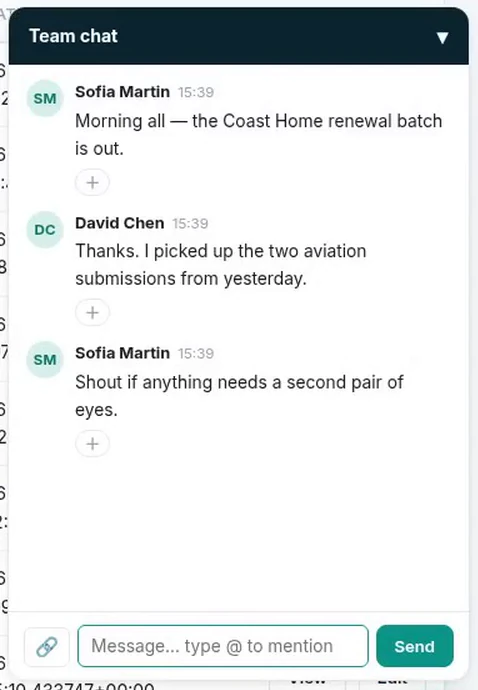
The panel following you from page to page is the whole point: you do not leave the record to ask about the record.
Typing an at-sign brings up your colleagues.
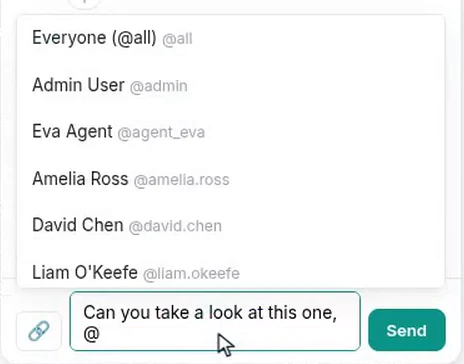
A mention is not decoration. It is the difference between a message in a channel and a message somebody is told about. Use @all sparingly for the same reason you always have: a channel where everything is urgent is a channel people mute.
The link button searches your actual records: submissions, quotes, policies, products.
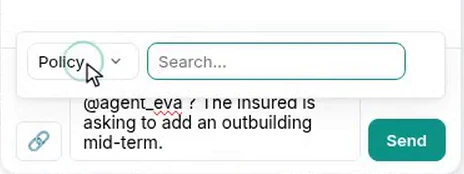
This is the habit worth enforcing on your team. “Can you look at POL-OK-HOME-5FBCB263” makes the reader search; a message carrying the policy makes them one click from it. The difference is small per message and enormous per week.
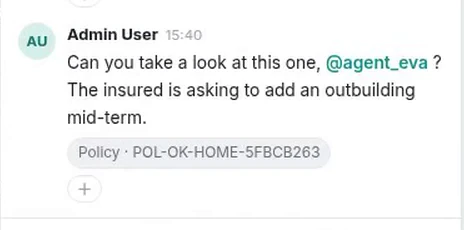
In the colleague’s window the same message arrives, highlighted because she was named, and the chip takes her to the record.
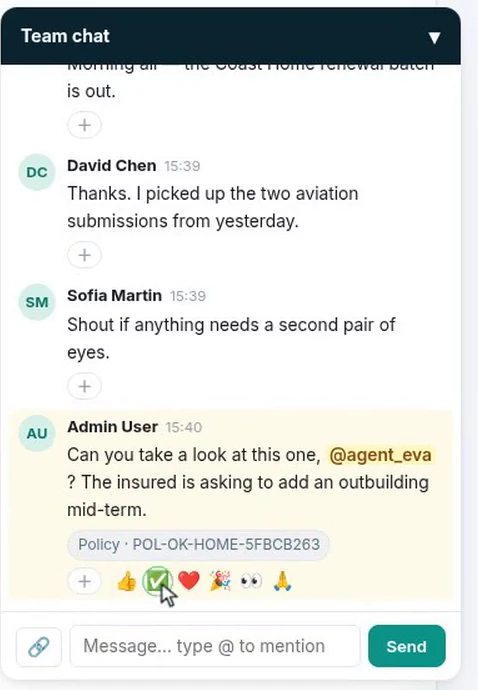
The reaction is worth noticing as a piece of protocol rather than a toy. “Seen, mine, working on it” is most of what a hand-over needs, and a reaction says it without another message for everyone else to read. Anyone can react; your own messages you can edit or delete, and the channel says so rather than quietly rewriting history.
Chat is where things get agreed and also where they get forgotten. A task is the commitment: an owner, a priority, a due date, a record.
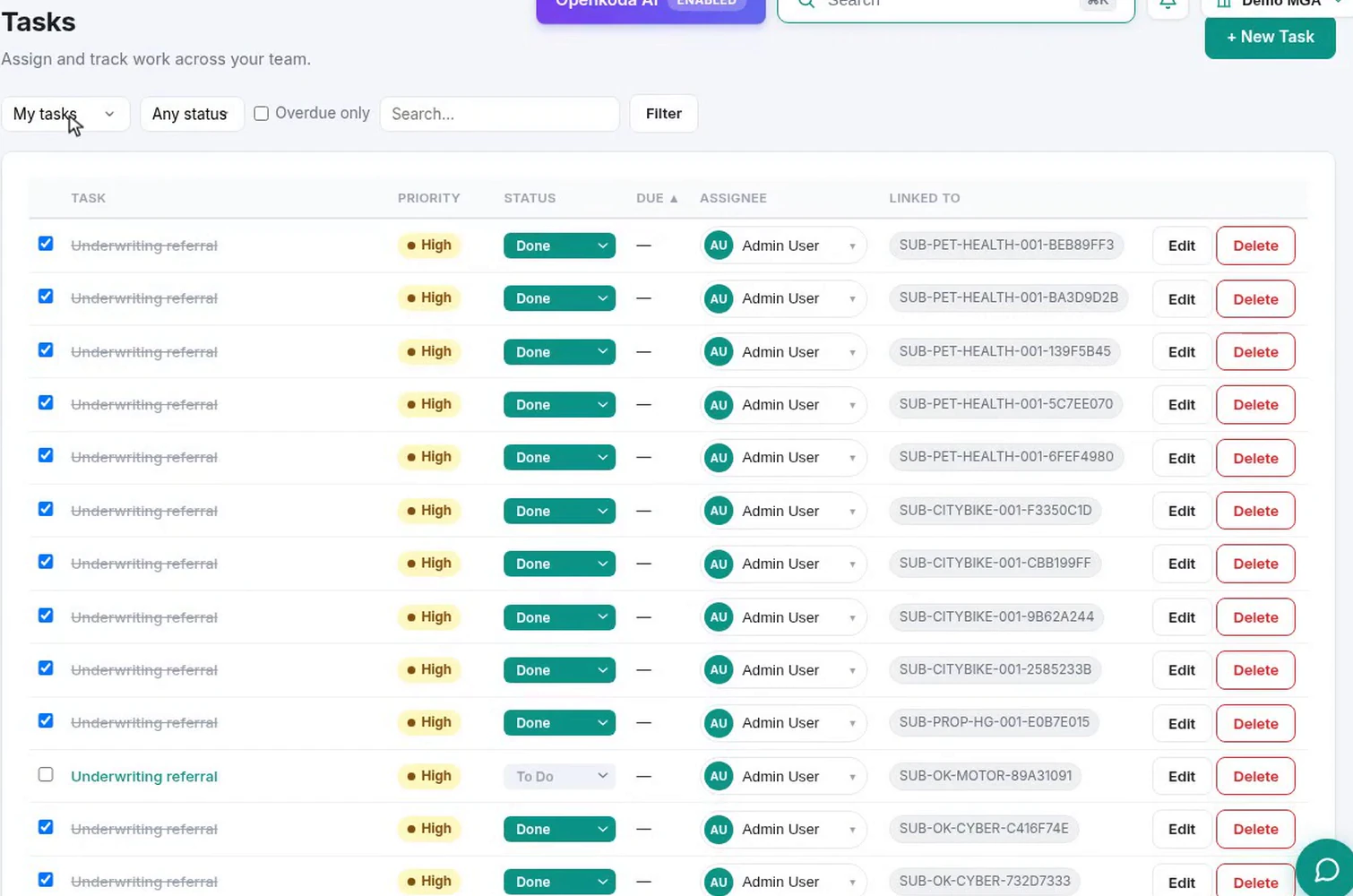
The sidebar carries a live count of what is open and turns red when something is overdue, and the same list can sit on a dashboard of your own. The filters are the three questions a team lead actually asks: what is mine, what have I handed out, what is everything.
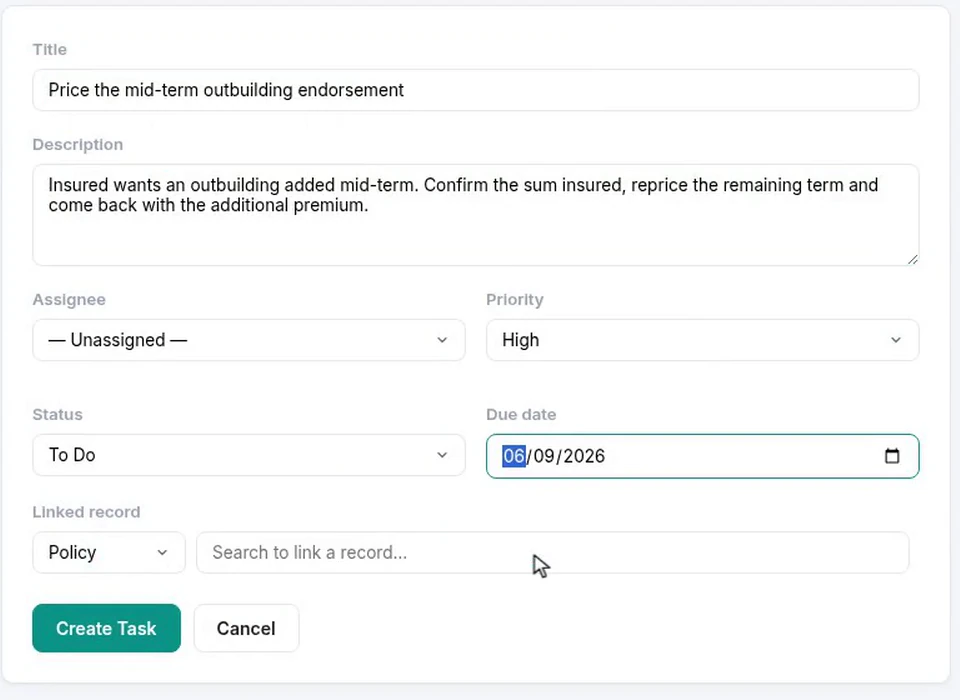
Write the description as the instruction you would give aloud: what to confirm, what to change, and what to come back with. “Reprice the endorsement” is a label. “Confirm the sum insured, reprice the remaining term and come back with the additional premium” is a task somebody can finish without asking you a question first.
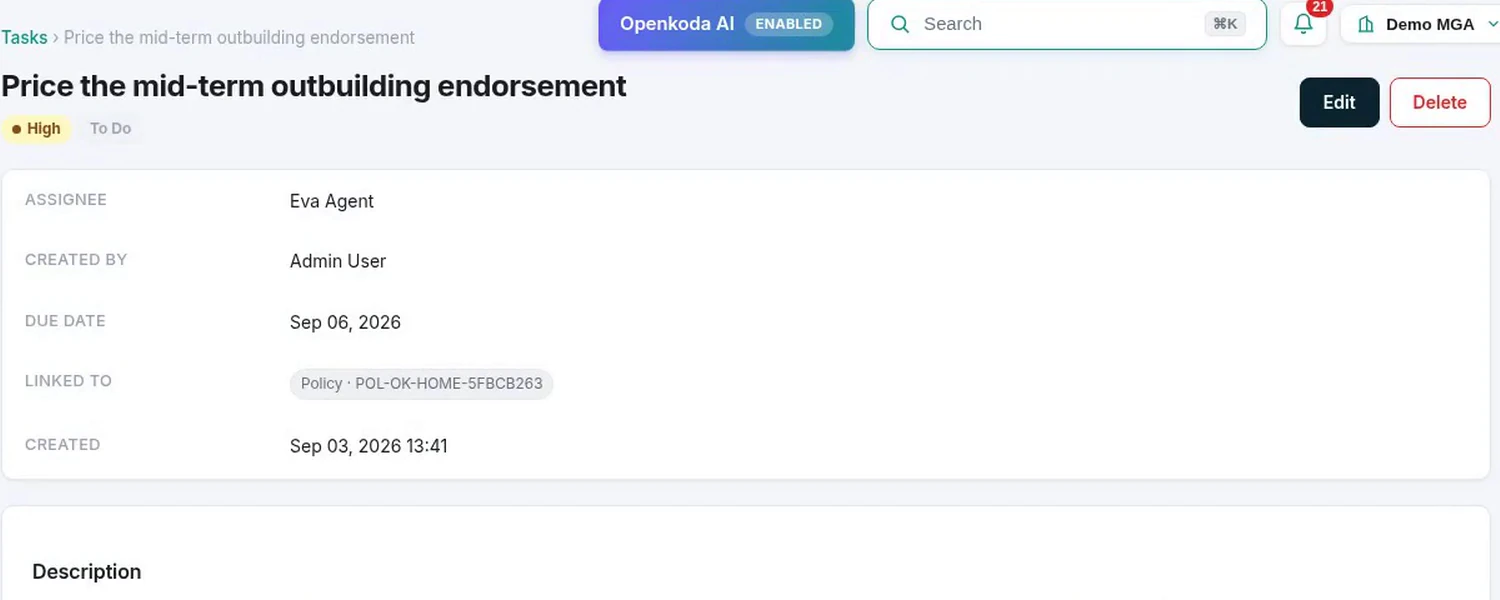
The other direction works too: every claim, policy and submission carries its own task list.
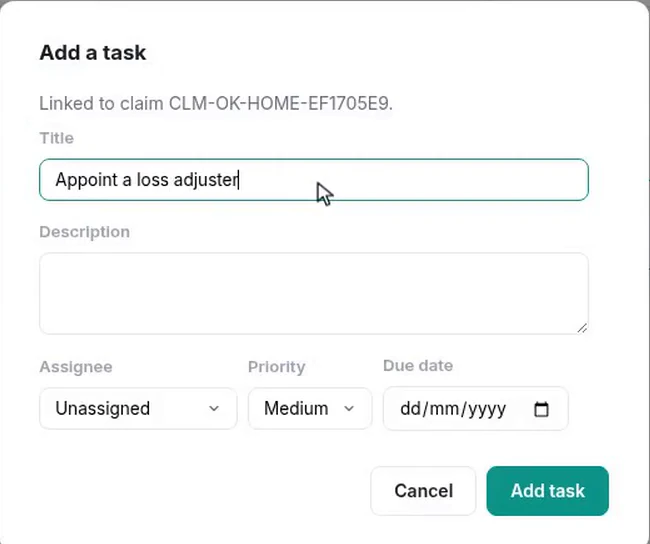
Prefer this route when you are already on the record. The link is filled in for you, and a link filled in by the system is one that cannot point at the wrong policy.
Assigning a task writes the person an in-app notification. They did not have to be watching.
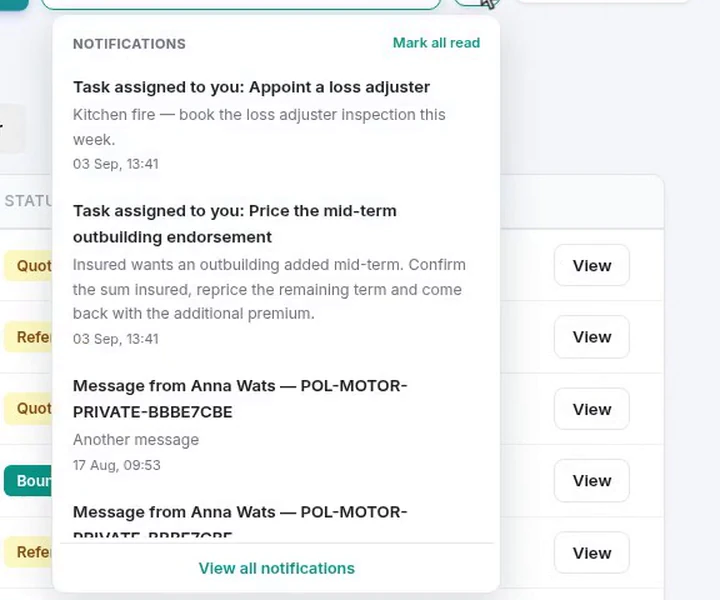
The notification carries the task’s own description, not just its title. That is enough to judge whether to open it now or after lunch, which is the difference between a notification and an interruption.
Assignments are one source among several.
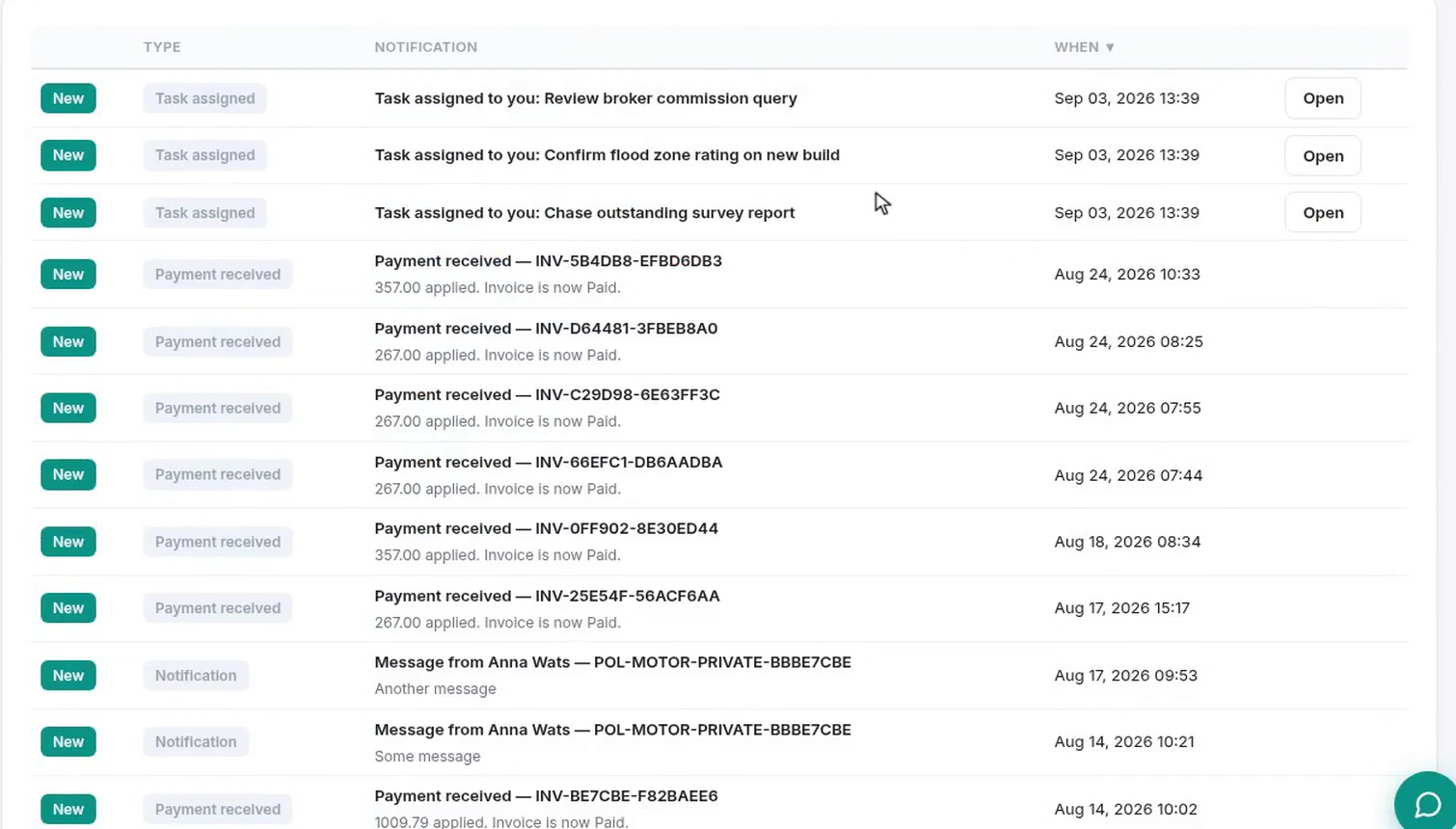
And insurance workflow automation writes to it itself, which is the part that changes how a team runs.
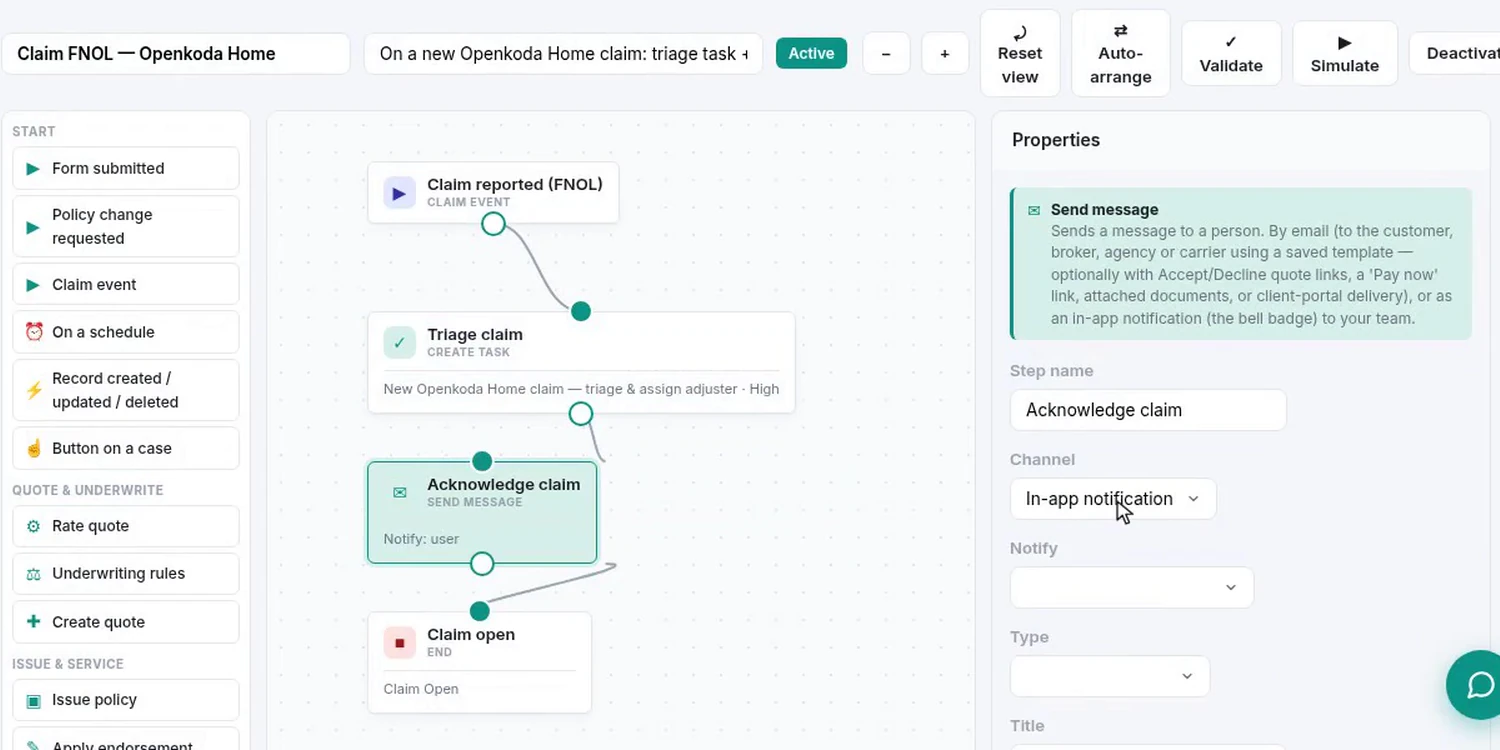
Two steps in that workflow are worth pointing at. Create task means a claim arriving raises the triage work by itself, assigned and prioritized, with nobody reading a queue to notice it. And the Send message step’s channel is set to in-app notification rather than email, so the same step that emails a customer can instead put a line on a colleague’s bell. Chasing becomes something the system does.
The colleague picks it up from her own list, does the work, and answers on the task.
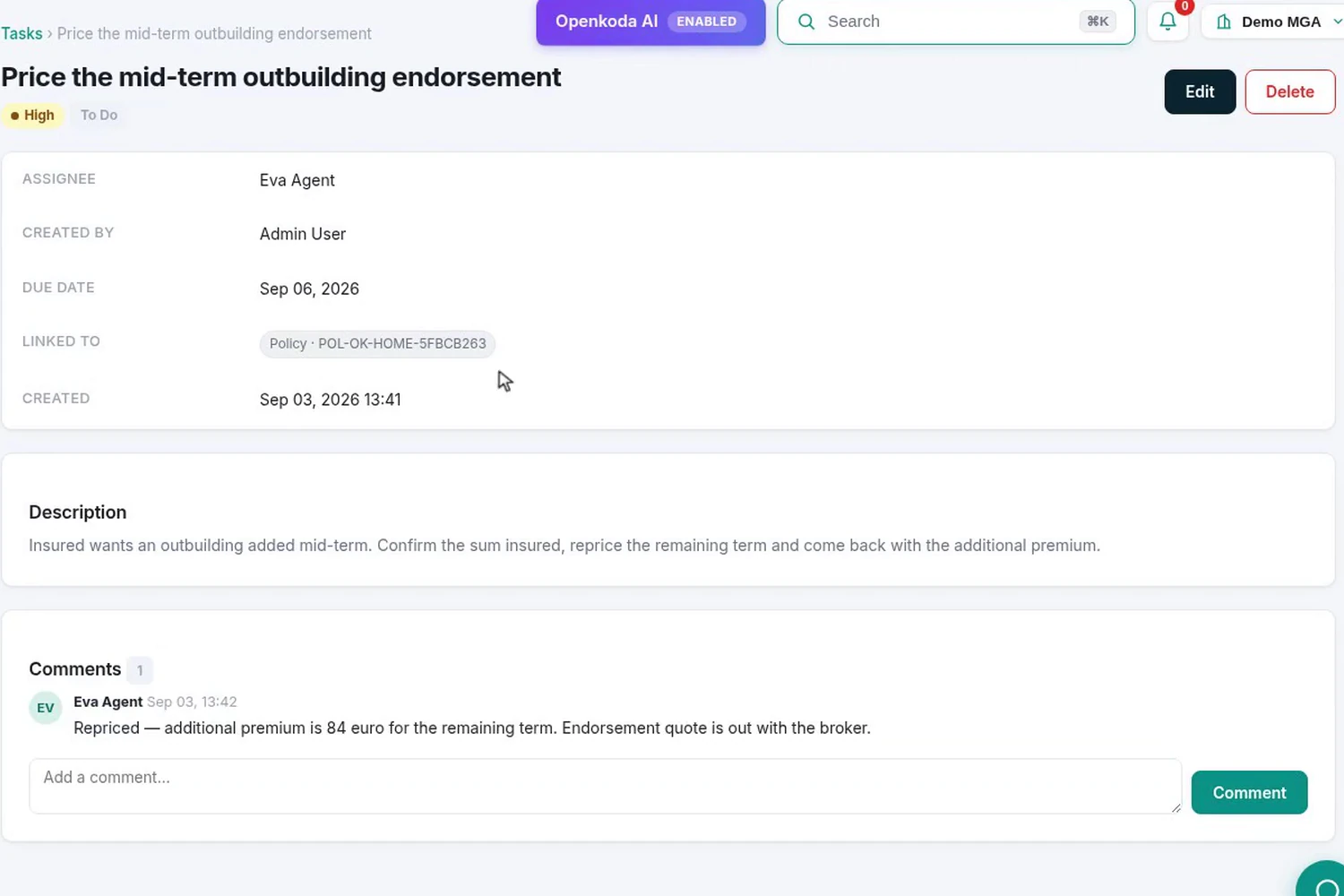
This is the step teams skip, and it is the one that pays. The answer belongs where the question is, attached to the policy it concerns, not in a chat thread that will be unsearchable by the time anybody needs it.
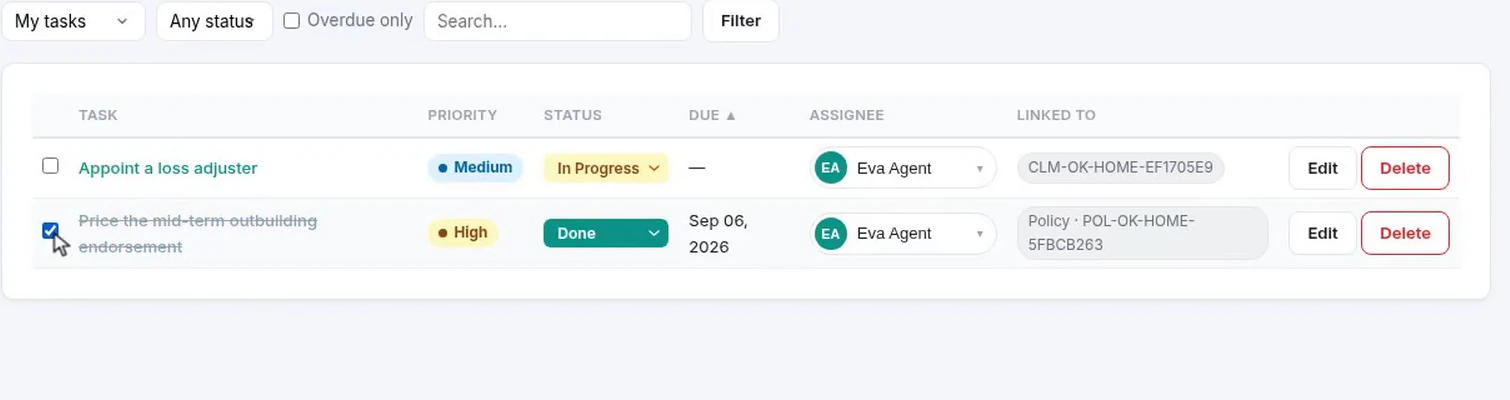
None of this is a chat app, a to-do list or a notification centre competing with the good ones you already have. It is the same three primitives with one property those cannot have: everything points at a record.
That property is what makes the history worth reading later. The message names the policy, the task hangs off it, the notification opens it, and the answer is filed against it, so the question “why did we reprice this mid-term, and who said so?” has an answer on the record itself rather than in somebody’s memory of a conversation.
Build a motor rating engine from four tables: derive the ages you do not store, combine the factors, add fees and tax, then price a real risk and reprice it.
Automate a claim acknowledgment end to end: a Word template with placeholders, the email that carries it, and a workflow that fires when the claim form arrives.
Build a billing desk board tile by tile, then a second one by describing it in a sentence, and make one the screen your team signs in to.
Book a live, personalized demo with our product team - tell us your use case and see the platform work with your data. No commitment.