How to Change an Insurance Product Safely with Product Versioning in Openkoda PAS
Raise a rate and add a cover in a draft, validate and publish it, then watch new quotes take the new version while sold policies keep theirs.
Endorse a policy mid-term with the premium impact priced, cancel pro-rata or short-rate, renew in bulk from one queue, and approve changes customers request online.

Every policy changes after it is sold. One customer extends the house, another sells it, a third reaches the end of the term. The endorsement, the cancellation and the renewal are most of what a servicing team does all day, and each has money attached: a mid-term adjustment has to be prorated and billed, a cancellation has to return the right premium, and a renewal has to be re-rated and invoiced with no gap in cover.
Few servicing errors are arithmetic: they come from three people keying the same short-rate percentage into a cancellation screen, or from a premium that moved six months ago with nobody able to say why.
In Openkoda PAS the servicing rules sit on the product: how a premium change is prorated, the size of the short-rate penalty, whether taxes are refunded, how many days before expiry a renewal offer goes out. Every screen reads them from there, so a cancellation is priced the same way whoever processes it.
Each operation also leaves a trail. A new period appears on the policy's lifecycle, an invoice or a credit lands on the billing account, the document or email is filed against the policy, and the audit log records who did it and when.
The walkthrough leans on three terms:
Everything below happens on one product, Openkoda Home, in the order a servicing team would meet it.
First the rules: two are set and saved, and a cancellation is tried on the calculator before any real policy is touched. Then the policies: one is endorsed, one is cancelled, and the renewal queue is worked through, with one customer accepting the offer straight from the email.
Last, a customer asks for a change through the public form and an underwriter approves it. The guide closes on the workflows that ran and the record they left.
Before you start, you'll need: a product with in-force policies on it, at least one policy on an instalment plan, a few policies inside the renewal window (the demo uses 45 days), a role for underwriters, and an account that can reach the Product Builder, Policies, Renewals and Tasks.
Open the product in the Product Builder and go to Servicing & Billing. Every rule that governs a policy after it is sold lives here, in groups. The first is Cancellation: which methods staff may use and which a customer may request, how the short-rate penalty is calculated and how large it is, how premium earns, whether fees and taxes are refunded, and how far back or ahead a cancellation may be dated.
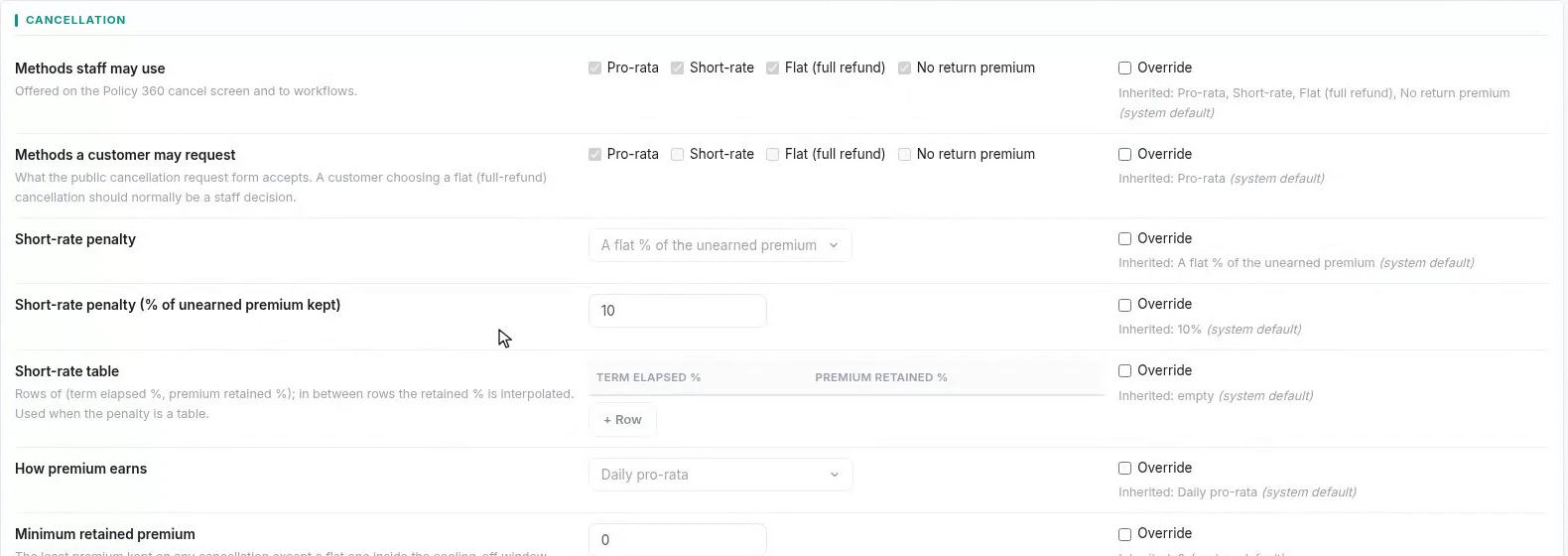
Each rule shows the value it inherits, from the organization's settings or the system default, with an Override box beside it. Nothing is set until that box is ticked, so a product only carries the rules that are really its own.
Endorsements have a group of their own: how a premium change is prorated, whether changes below an amount are waived, an endorsement fee, and whether the charge is billed at once or spread over the instalments still to come.
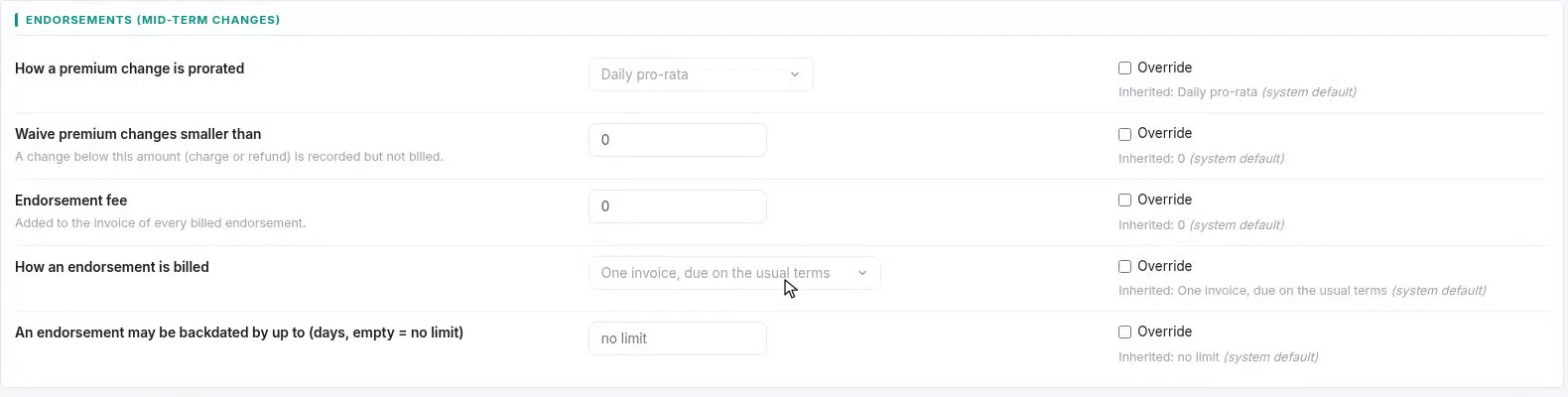
And Renewal has its lead time: how many days before expiry an offer goes out, and which policies are eligible.

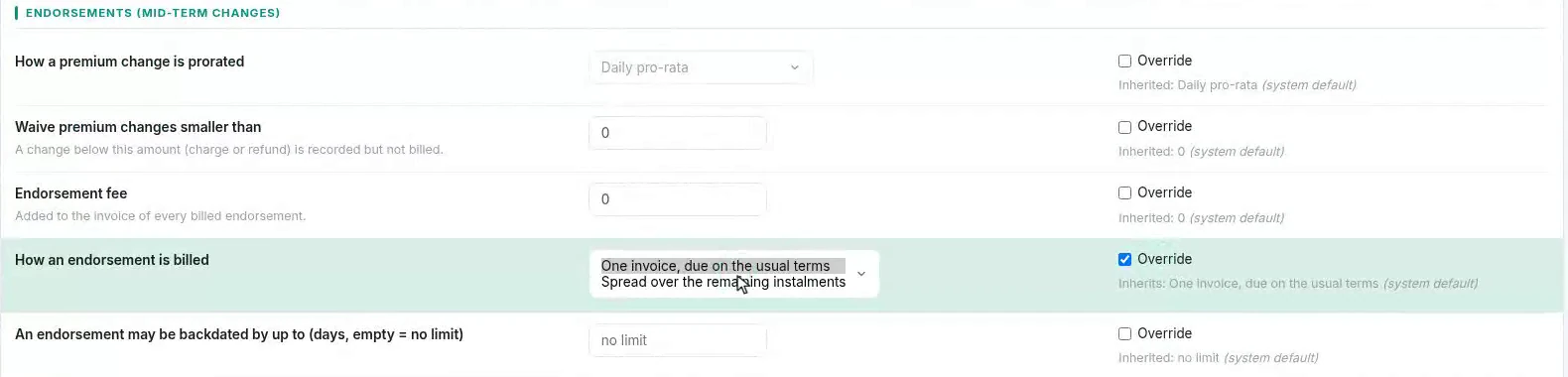
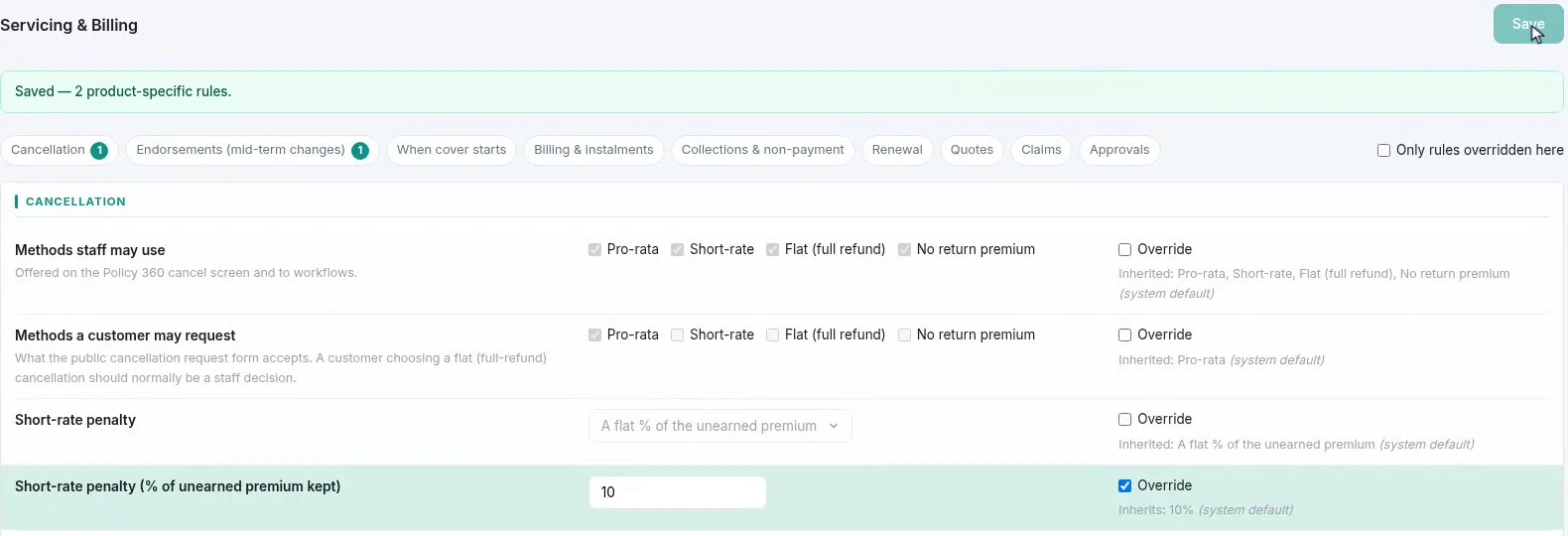
Set two of them for this product. Under Cancellation, tick Override on the short-rate penalty and keep it at ten percent of the unearned premium. Under Endorsements, tick Override on How an endorsement is billed and choose to spread it over the remaining instalments.
Save. The page confirms how many product-specific rules it now holds, and the group chips at the top count them, so a colleague can see at a glance where this product departs from the defaults. Every number in the rest of this guide comes from this page.
At the bottom of the same page is a calculator. It runs the product's cancellation rules on numbers you type, so a rule can be tested without touching a real policy: a thousand of premium, a one-year term, cancelled after ninety days, and a method.
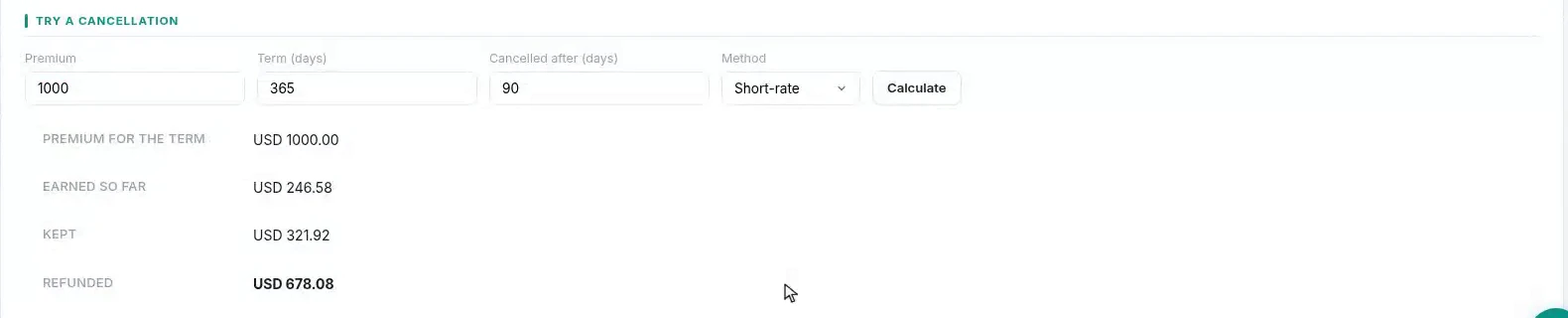
Switch the method and calculate again. Pro-rata keeps only what has been earned and returns everything else. Flat refunds the whole premium, and no-return keeps the lot. The difference between short-rate and pro-rata is the penalty you just set, to the cent.
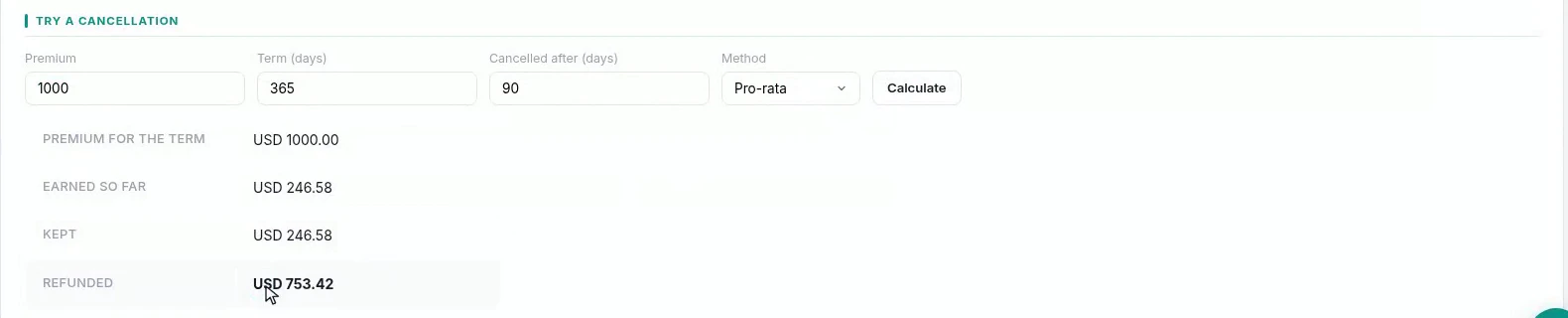
Use this whenever a rule changes. If the refund is not what the policy wording promises, fix the rule here, not on the cancellation screen later.
Further down is the Approvals group. Changes that customers request online can go straight through or wait for an underwriter; so can cancellations they request and renewal offers. Switch the review on for mid-term changes and save.
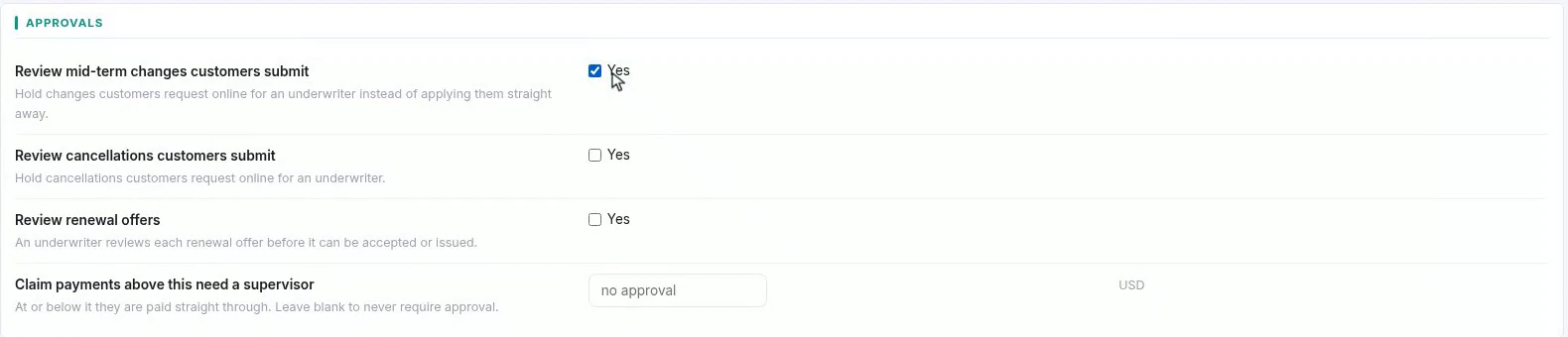
This one switch is what turns a customer's request into a task later in this guide. Leave it off for a product where small changes should apply themselves.
Now a policy. Harriet Homeowner's home policy has been in force since July and is paid quarterly. The action bar on Policy 360 carries the three servicing actions beside the usual ones: Endorse policy, Cancel policy and Renew policy.
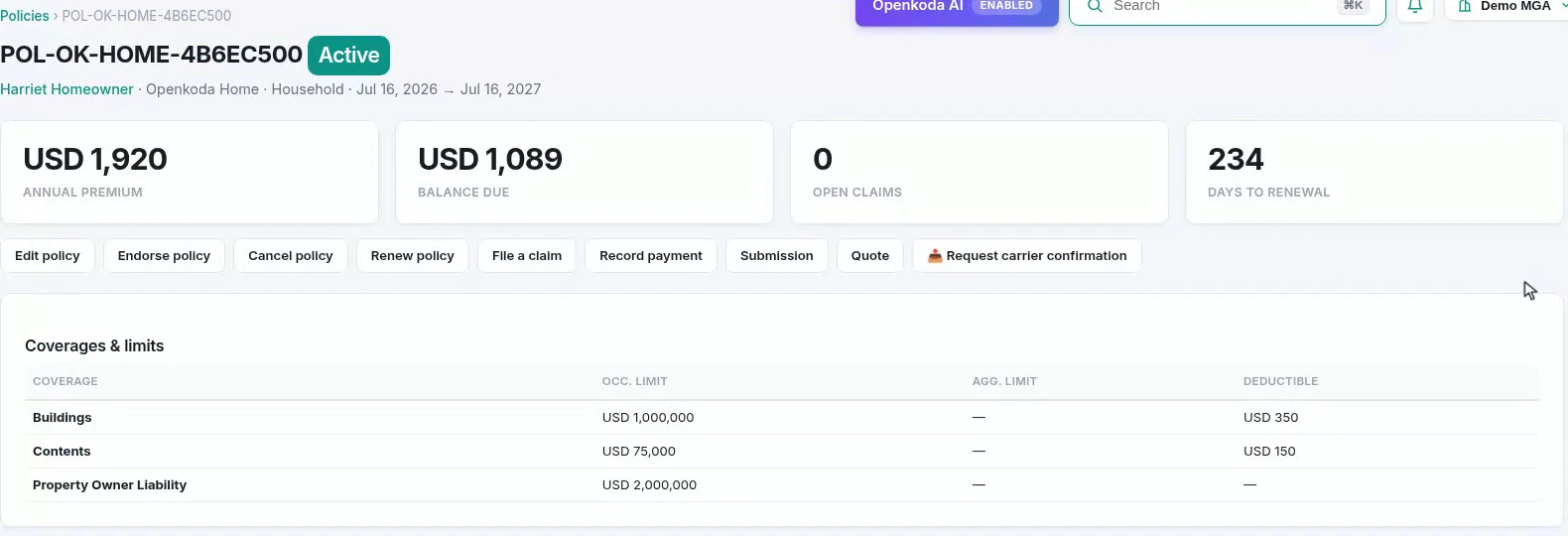
Further down is the policy lifecycle card, the history of the contract. So far it has one period, the original term. Everything that follows adds a row to it.

Harriet has built an extension, so the rebuild cost goes up. Press Endorse policy. The change type is an insured item change, the effective date is the first of December, and a reason is optional but worth writing. Below, the details the policy was rated on are editable: the buildings sum insured becomes one point eight million.
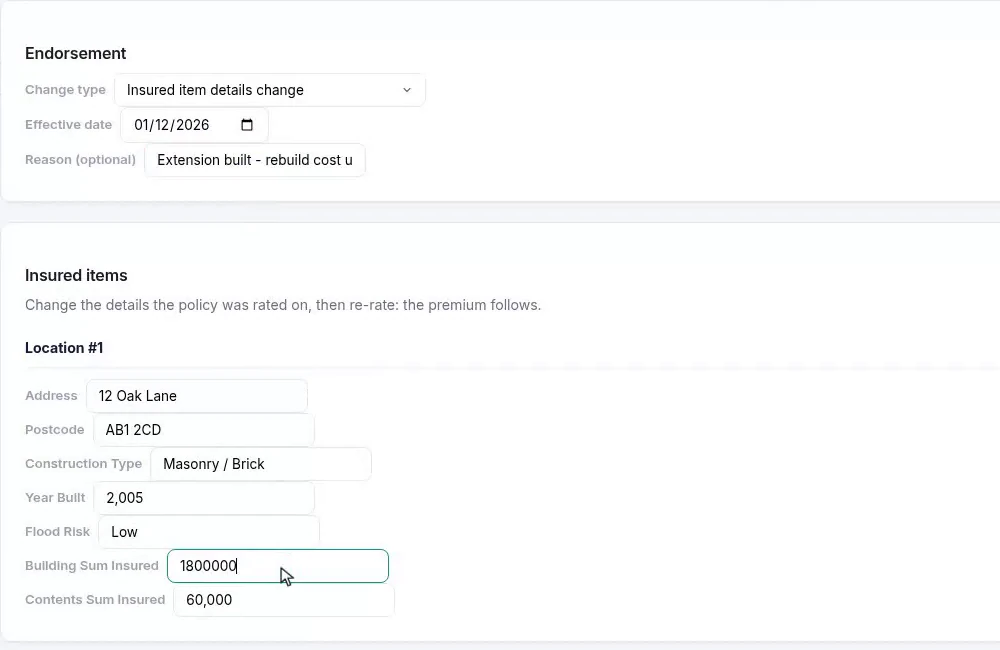
Press Re-rate. The Premium impact box is the part to read before applying anything: the new annual premium against the old one; the charge for the days left in the term, with the day count and the proration rule it used; how the charge will be billed, which is the rule saved in Step 2; and the product version it was rated on.

If the box says the change is waived, the product's threshold caught it: the change is recorded but not billed. If it names a fee, that is the endorsement fee from the same group.
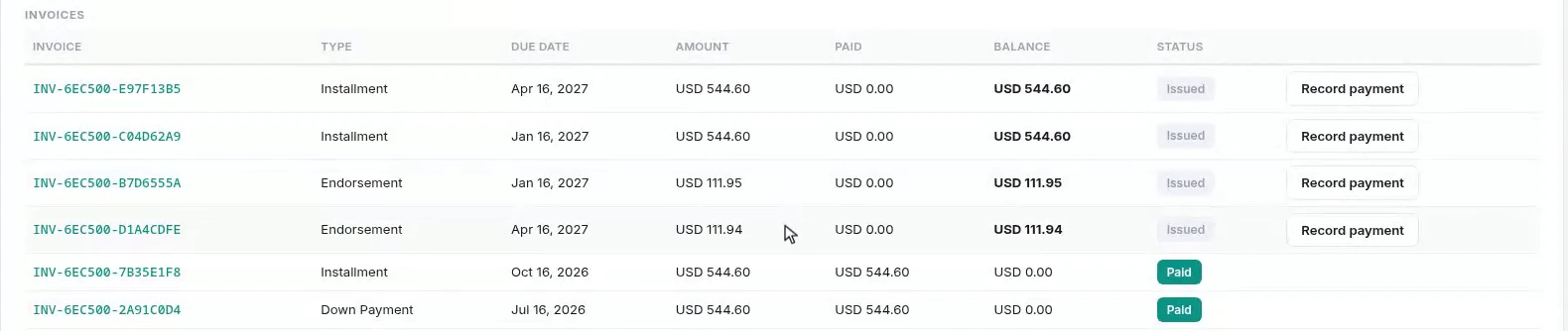
Press Apply endorsement. Back on Policy 360, the Billing card shows what the spread rule did: the two open quarterly instalments each gained an endorsement invoice for half of the charge, due on the same dates. The paid instalments are untouched.
The lifecycle card has its second row. The original period is superseded; the endorsement period is active and carries the new premium.

Nothing was sent by hand. The change is on the record, priced and billed, and the next person to open the policy sees why the premium moved.
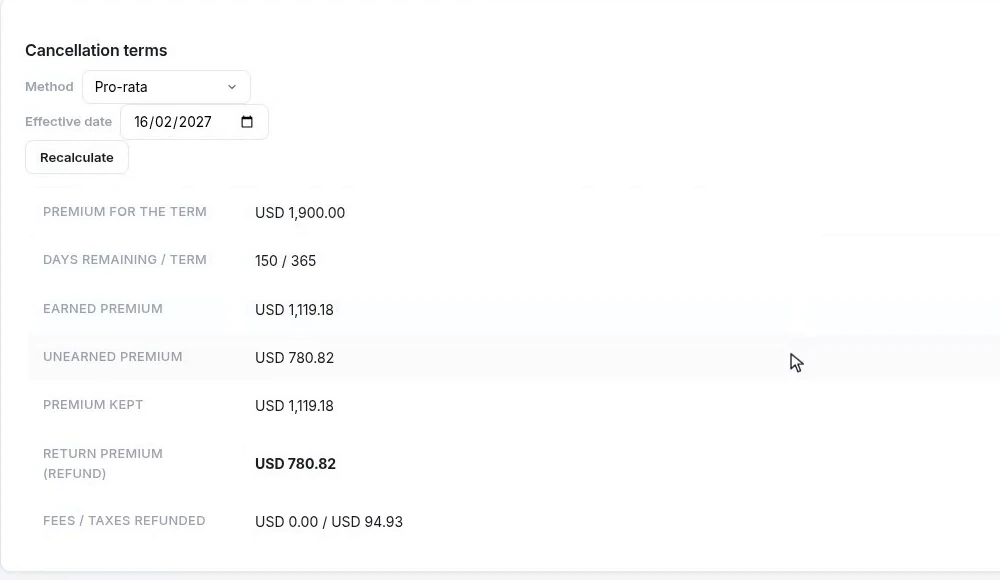
Cancellations work the same way. Marcus Whitfield has sold his house and wants to cancel from the sixteenth of February, five months before the policy ends. Press Cancel policy, set the date, and read the cancellation terms: the premium for the term, how many days remain, how much is earned by that date and how much is unearned, and what comes back. Pro-rata first: the unearned premium is the refund.
Switch the method to short-rate and recalculate. A penalty line appears, the ten percent of the unearned premium from Step 2, the premium kept goes up by it, and the refund goes down by it. The taxes refunded follow the premium, because the product rule says they do.
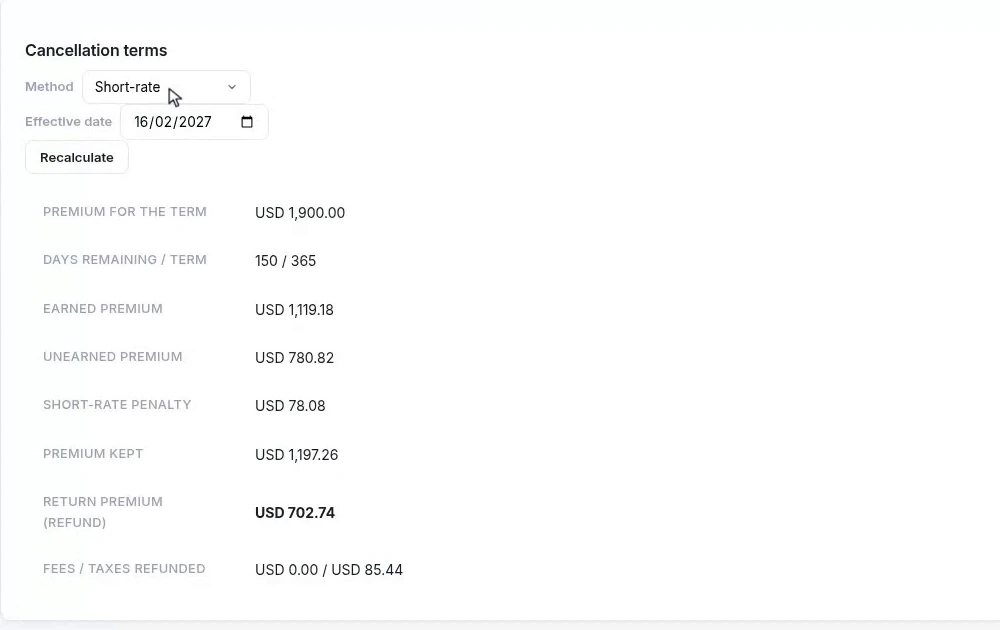
The methods offered in this dropdown are the ones the product allows staff to use. A method a customer may request online is a separate, usually shorter, list.
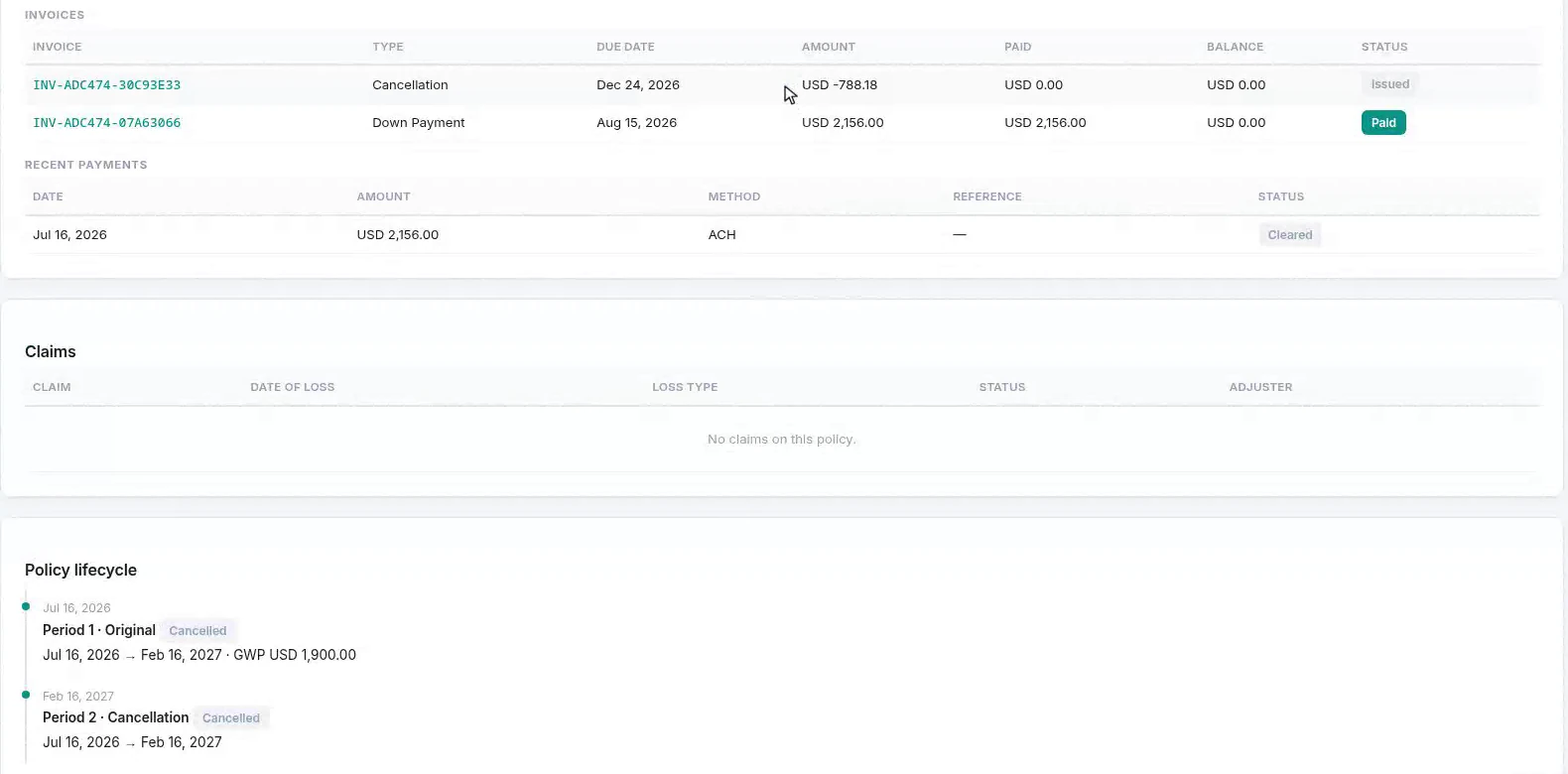
Write a reason, attach the signed request if there is one, and confirm. The policy is cancelled: its term now ends on the cancellation date, and the balance due has turned into a credit.

Below, the billing account carries a cancellation invoice for the return premium, negative, and the lifecycle has a cancellation period after the original.
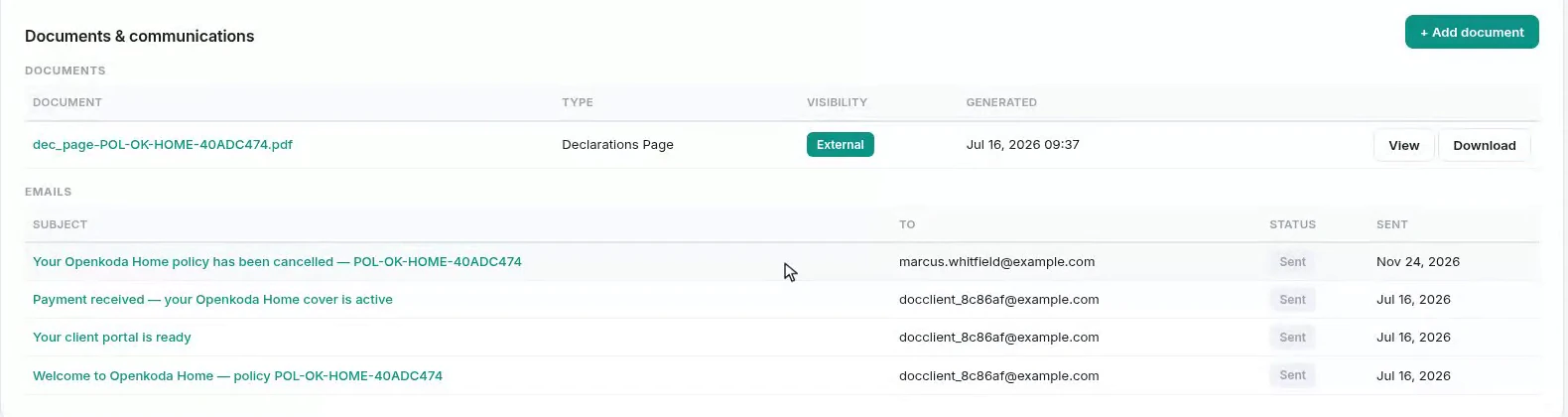
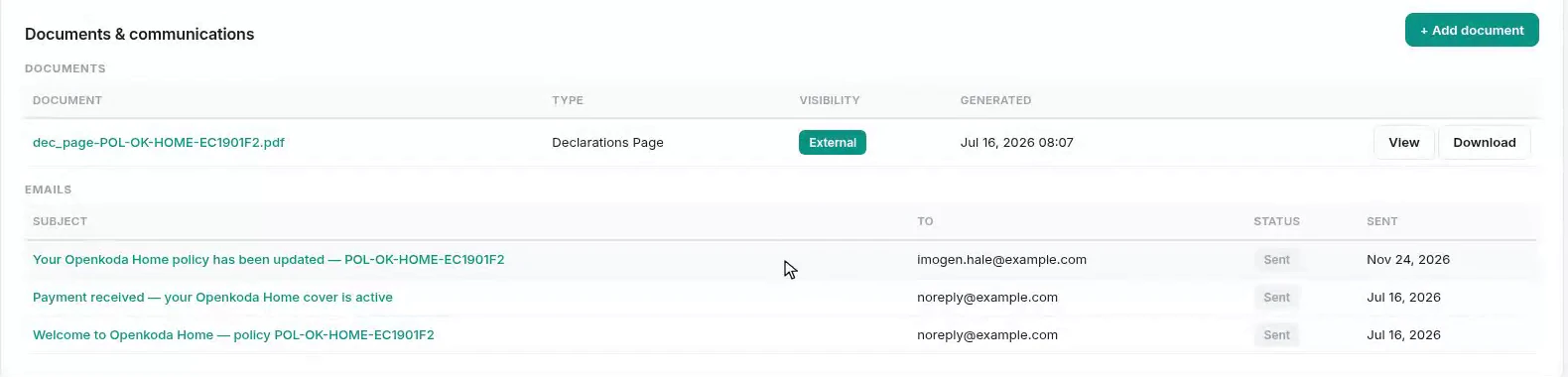
And the notice of cancellation has already gone to Marcus, filed with the policy under Documents & communications.
Renewals are a queue. The sidebar badge says how many are due, and Renewals lists every policy inside its renewal window, with the premium it pays now and what the renewal would cost at today's rates, side by side. Three actions sit on each row and above the list: Renew one, mark one Non-renew, or Generate all due offers.
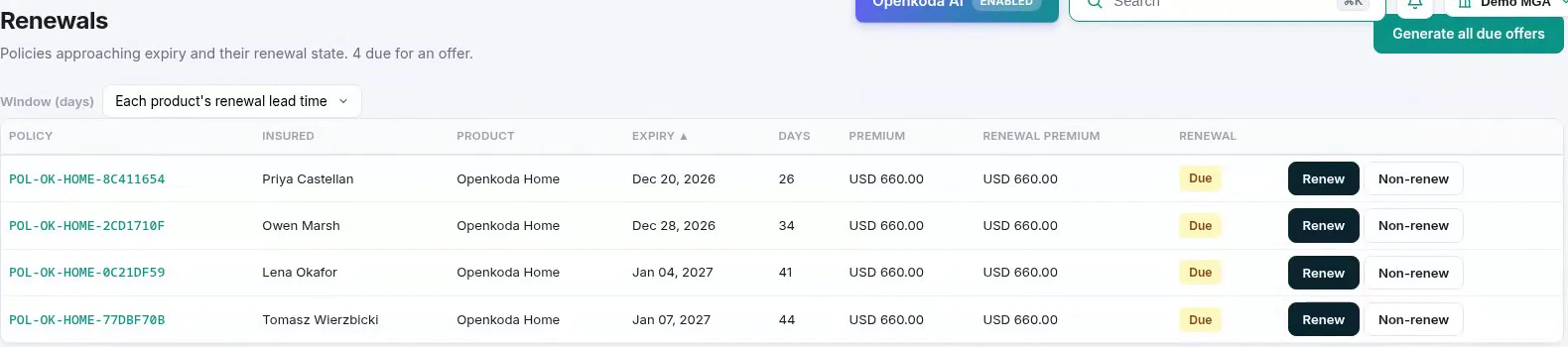
The two premium columns are the point of the page. When rates have changed, the renewal premium differs from the current one, and the rows worth a human look are the ones where the gap is large. Here the rates have not moved, so the columns match.
Open one. Owen Marsh's policy is re-rated for the next term, starting the day the current term ends. The coverages and the risk details can be adjusted before the offer goes out; re-rate after changing them.
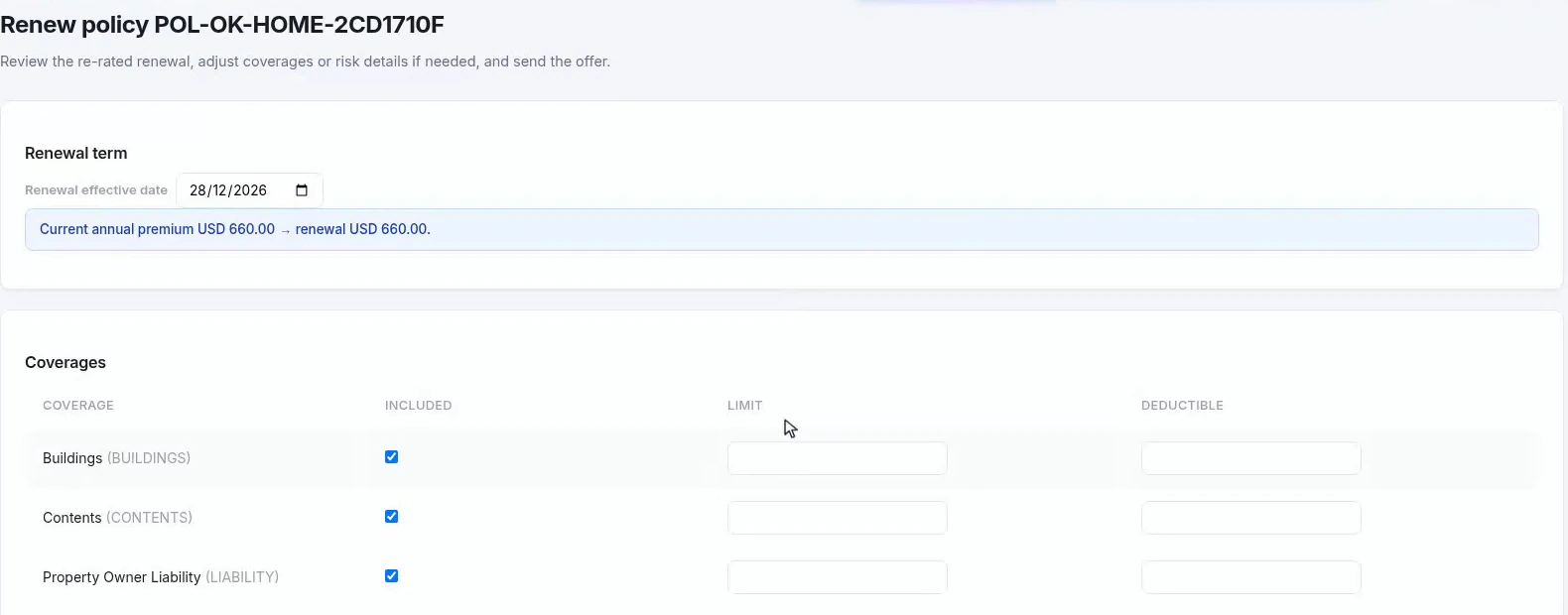
Create renewal offer makes the renewal quote and starts the product's renewal workflow, which sends the offer to the customer and then waits.

Back in the queue, Owen's row shows the offer and the policy number it created.
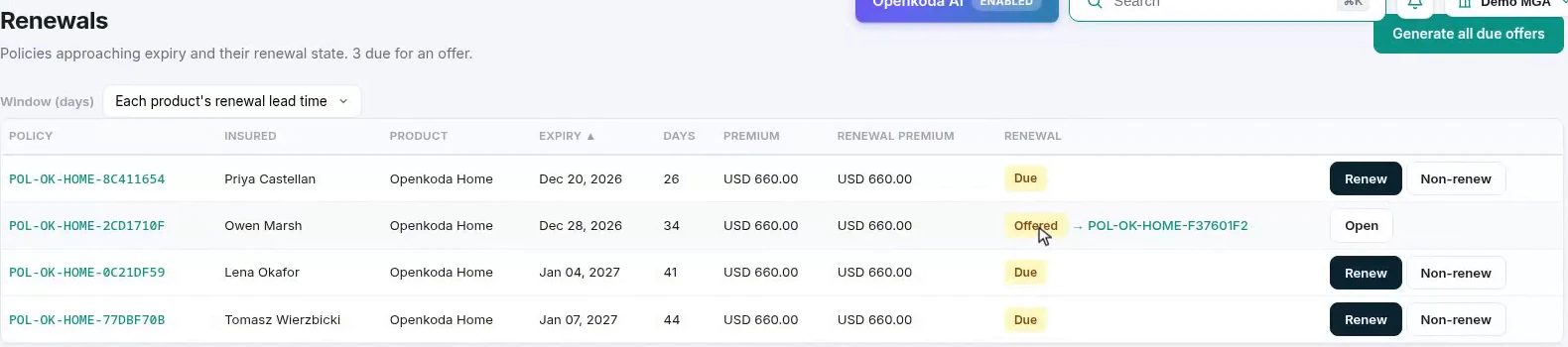
One policy will not be renewed, so mark it non-renewed. For everything else that is due, press Generate all due offers: each remaining policy is re-rated, gets an offer, and its workflow starts. The queue reports how many it generated.
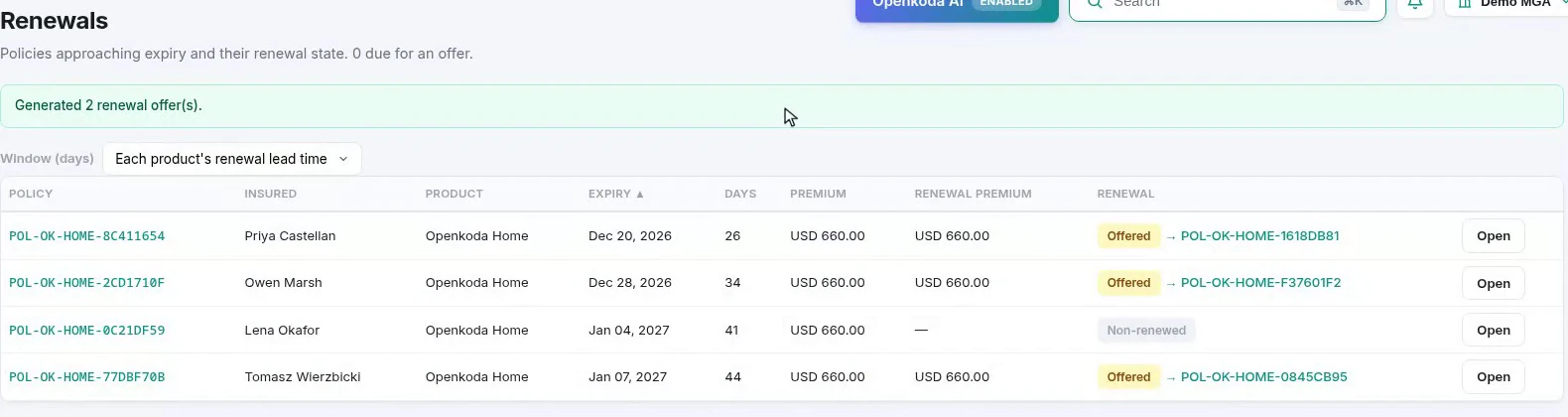
This is the policy renewal automation most teams want: look at the exceptions by hand, and let the rest go out in one click, each one re-rated on the current product.
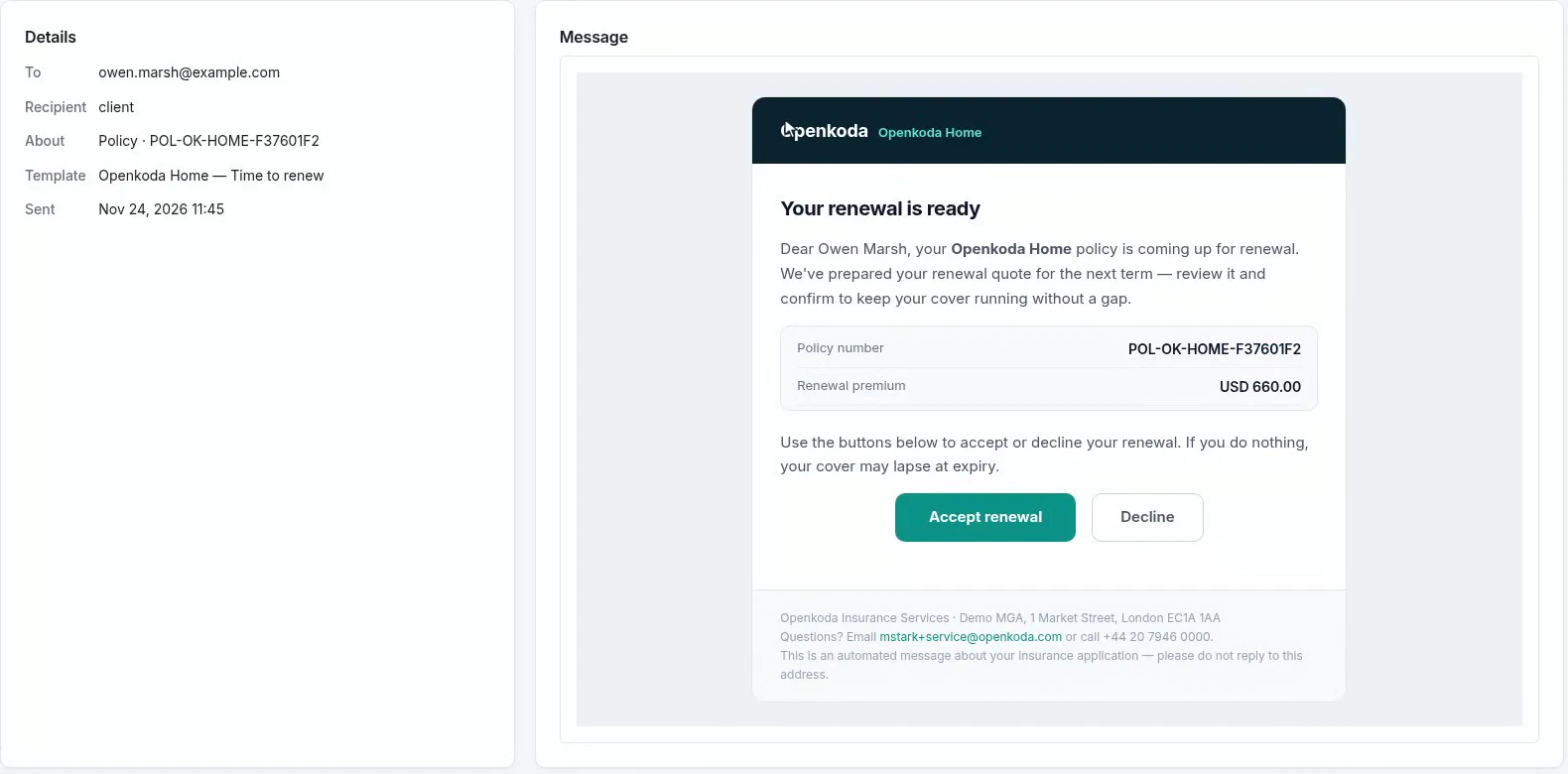
What did Owen get? The renewal workflow sent him the offer by email, and the email log holds it: the policy number, the premium for the new term, and buttons to accept or decline.
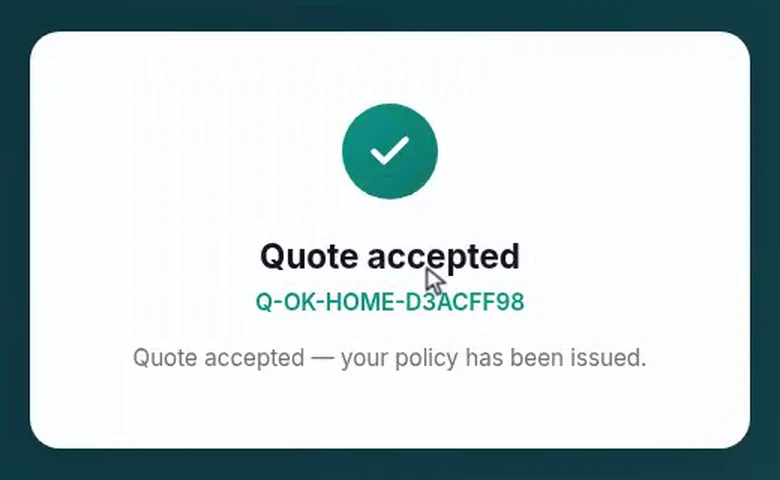
He opens the link signed out, like any customer, and accepts. The page confirms it and says the policy has been issued. That is the event the workflow was waiting for.
Back in the app, the old policy now points at its renewal, and its term ends on the expiry date.

The new policy is in force from that same day, for another year, with its first invoice already issued. No gap, and nobody re-keyed anything.
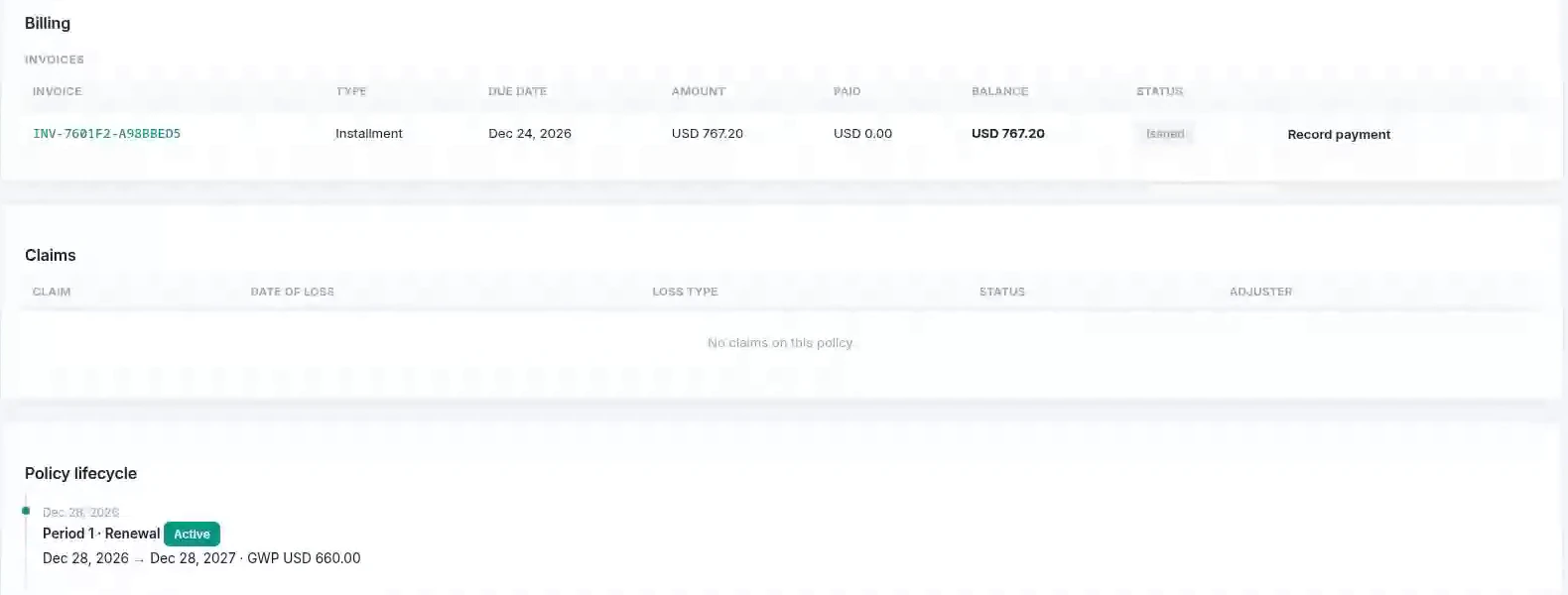
If the customer does nothing, the wait step in the renewal workflow times out and marks the policy non-renewed. That timeout is a field on the step, shown in Step 13.
Customers can also ask for changes without calling. Every product can expose a public endorsement form. Imogen Hale enters her policy number and surname, raises her contents sum insured to eighty thousand, picks a date, and submits.
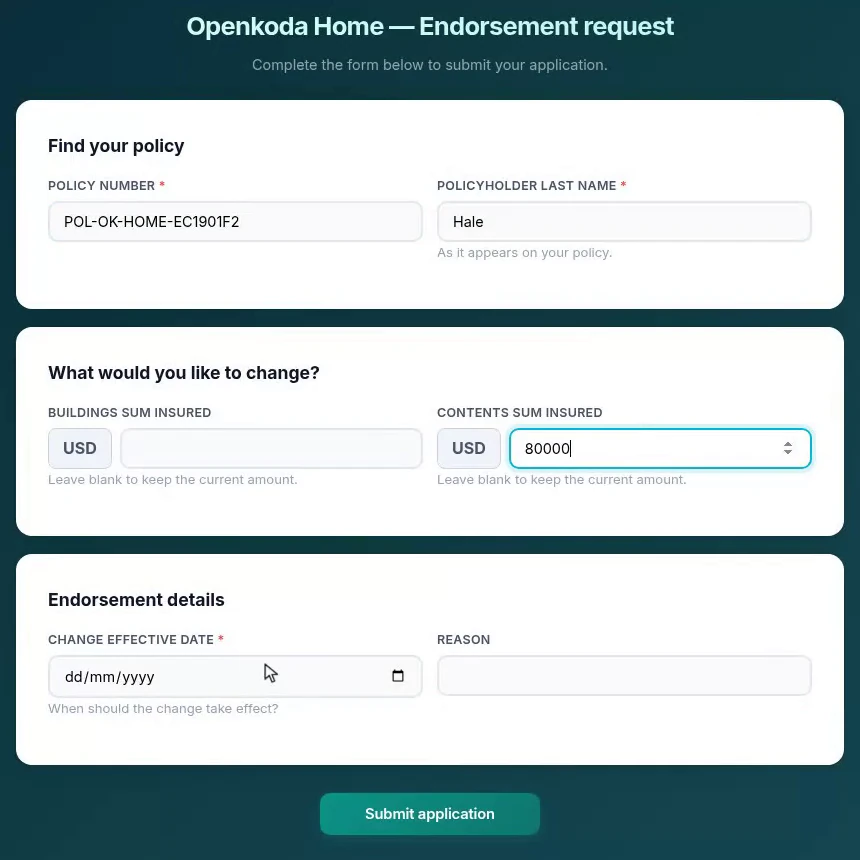
Because the review switch from Step 4 is on, the request is not applied. It is held for an underwriter, and the customer is told so.
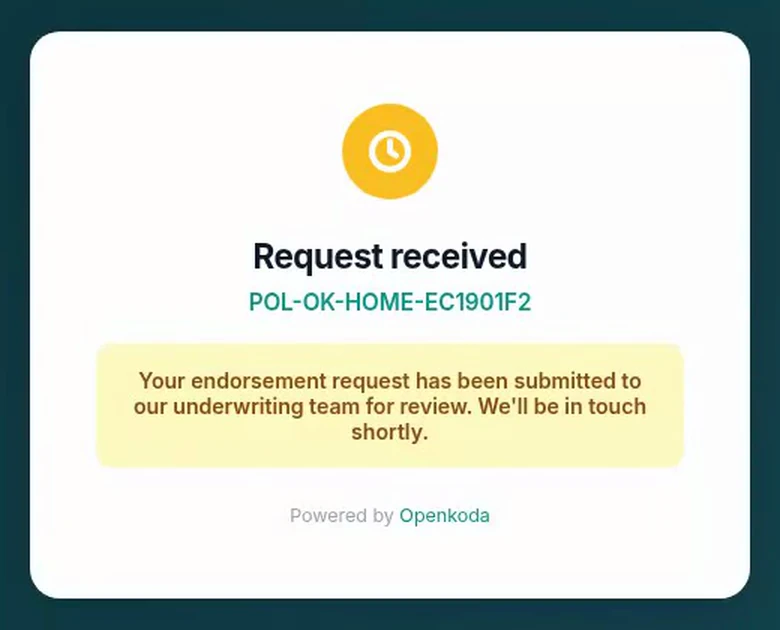
Fields left blank on the form keep their current value on the policy, so a customer who only changes the contents sum does not have to retype the buildings sum.
On the underwriters' task list, there it is: Approve endorsement, queued for the role so any underwriter can claim it, with a priority, a due date, and a link to the policy.

Follow the link. The policy shows the pending change in a banner under the action bar, with one button.
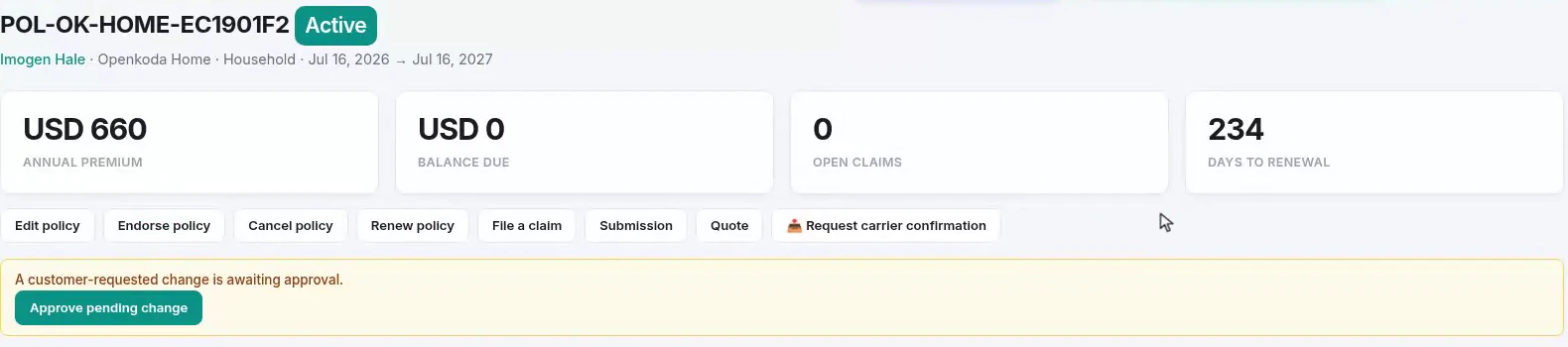
Press Approve pending change. The workflow picks up where it was waiting: it re-rates the change, applies it as a new period on the lifecycle, and the premium moves.

Then it emails Imogen a confirmation, logged against the policy like everything else.
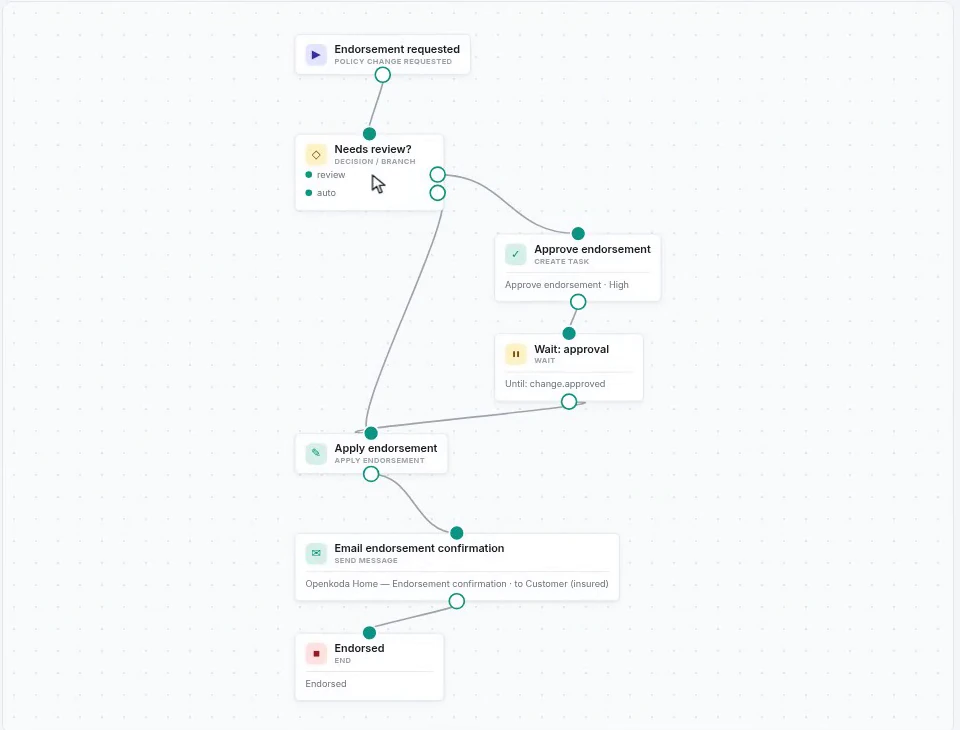
All of this ran through workflows on the product, and each one is a diagram you can open and change under Workflows in the Product Builder. The endorsement workflow starts when a change is requested, decides whether it needs review, and on the review branch creates the task and waits for approval; both branches then apply the endorsement and send the confirmation.
The renewal workflow prepares the offer, emails it, and waits for the customer to accept, with a timeout that marks the policy non-renewed. Acceptance leads to the issue step and the confirmation email.
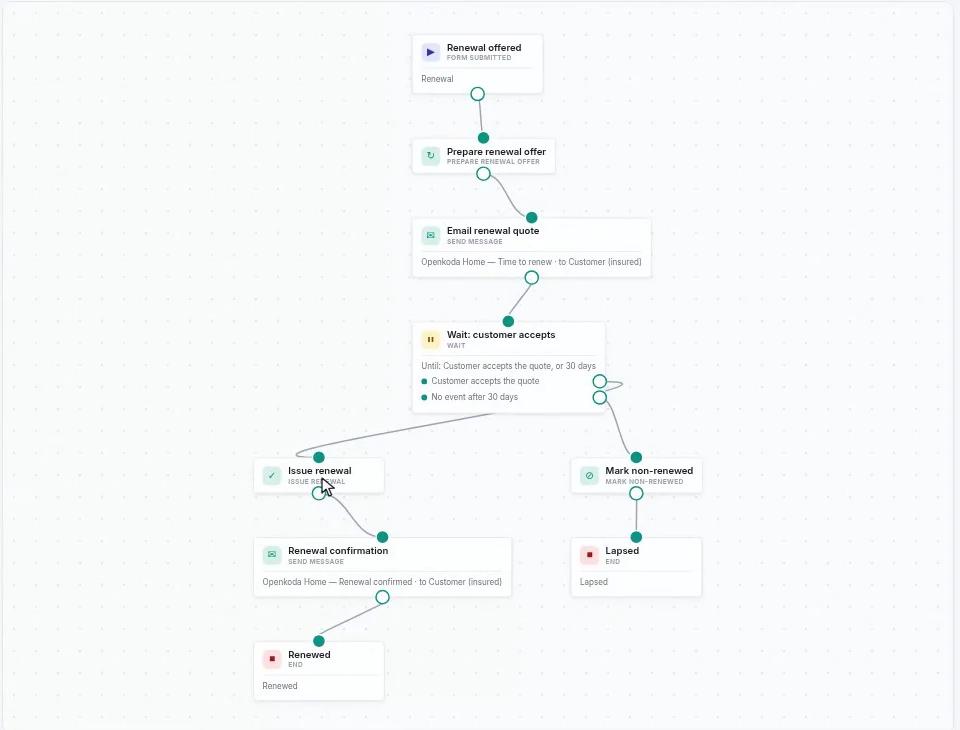
Every step is a node with properties: which template the email uses, which role gets the task and how many days it has, how long the wait lasts. Change the timeout from thirty days to fourteen and save, and the next renewal runs that way. The cancellation workflow is the third of the set; it is what sent Marcus his notice in Step 8.
Finally, the record. On each policy, the lifecycle card lists every period with its premium, and Documents & communications holds what was generated and sent. Across the organization, Audit Trail filtered to policies shows every change in order: endorsements with the premium before and after, renewals issued, policies marked non-renewed, each with the user who did it and when.
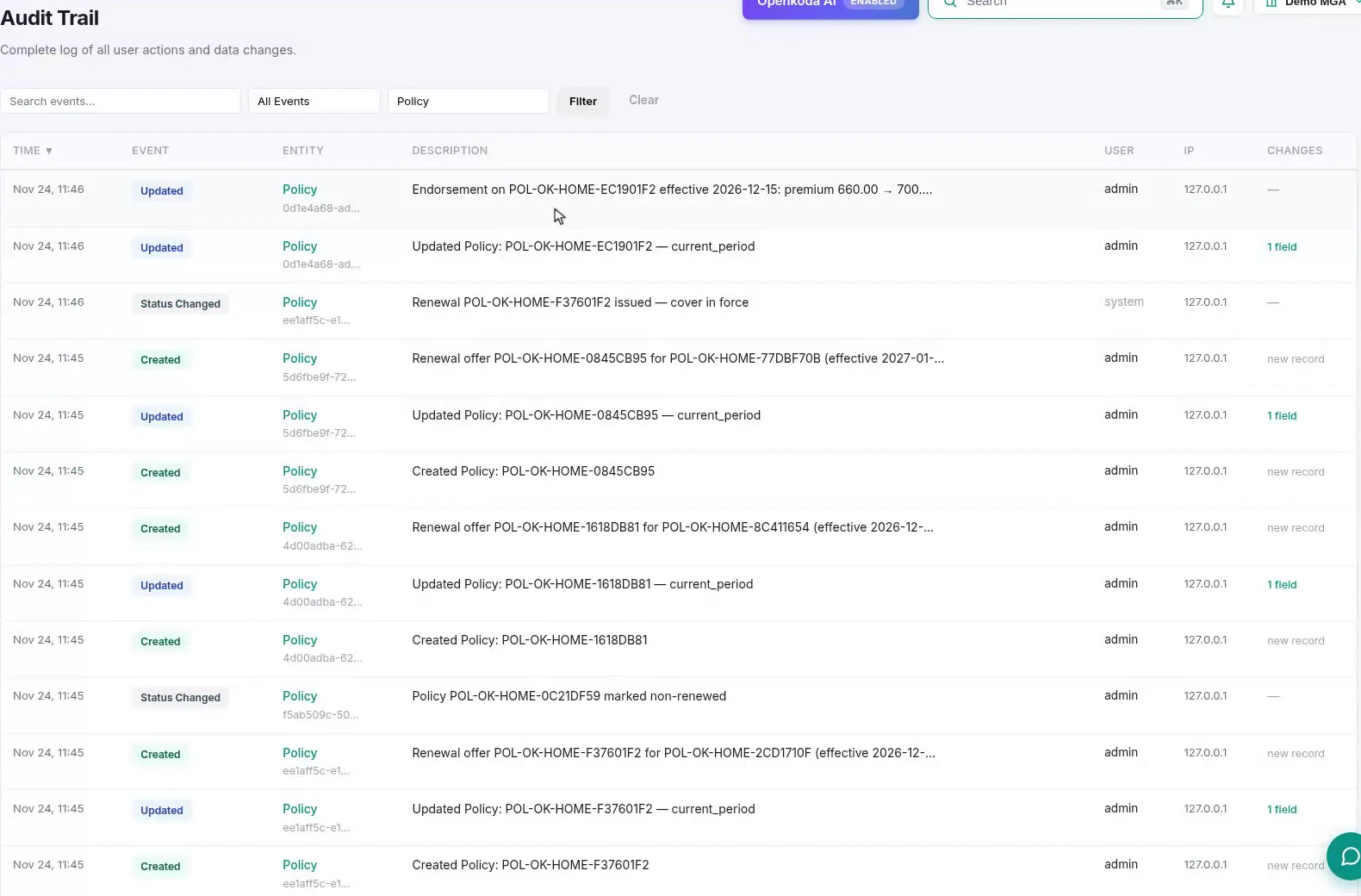
When a customer asks why the premium changed in December, the answer is three clicks away, with the numbers the system used at the time.
Endorsements, cancellations and renewals in Openkoda PAS come down to rules on the product and actions on the policy. Set the proration, the penalty, the billing and the lead time once, under Servicing & Billing, and test them on the calculator. Then every endorsement shows its premium impact before it is applied, every cancellation shows the return premium under each method, and every renewal is re-rated and offered from one queue, by hand or in bulk. The part to take away is the approval switch: with it on, a change a customer requests becomes a task for an underwriter, and the same workflow that would have applied it automatically applies it on approval instead.

Raise a rate and add a cover in a draft, validate and publish it, then watch new quotes take the new version while sold policies keep theirs.

Reminders that run themselves: a workflow, a reminder email with a pay-now link, a grace period and escalation, run from an overdue invoice to paid.

Switch the portal on, choose what customers can see and do, apply your brand, and let the new-business workflow invite each customer when their policy goes live.
Book a live, personalized demo with our product team - tell us your use case and see the platform work with your data. No commitment.