How to Handle Endorsements, Cancellations and Renewals in Openkoda PAS
Endorse a policy mid-term with the premium impact priced, cancel pro-rata or short-rate, renew in bulk from one queue, and approve changes customers request online.
Raise a rate and add a cover in a draft, validate and publish it, then watch new quotes take the new version while sold policies keep theirs.

An insurance product is never finished. Rates go up after a bad flood season, covers are added, questions are reworded and limits raised. The catch is that the policies already sold were priced and worded on the product as it was. Overwrite the live configuration, and the next endorsement on an existing policy is re-rated on numbers the customer never agreed to, while the next renewal quietly becomes a different contract.
Product versioning is how a policy administration system keeps those two things apart.
The live version is what new business is sold on. A draft version is where changes are made, validated and reviewed, without touching anything that is live.
Publishing turns the draft into the new current version, and the old one is kept, superseded but intact, because every policy sold on it still points at it. Rolling back is the same operation in the other direction.
Nothing is deleted at any point, which is what makes the whole thing safe.
The practical consequence is that a rate change no longer needs an IT release. The people who own the product make the change in a draft, check it, and publish it, and the system does the bookkeeping: which version prices a new quote, which version prices an endorsement on a policy sold last year, and who published what, when.
Three terms are worth fixing before the walkthrough:
The walkthrough stays on one product, Openkoda Home, and makes one change to it: the flood factor for medium-risk properties goes up, and an optional Home emergency cover is added. The change is made in a draft, validated, fixed where validation finds a gap, validated again and published. Then a new quote is priced on the new version, an in-force policy is endorsed and re-rated on the old one, the change is rolled back, an unwanted draft is discarded, and the audit trail is read.
Before you start, you'll need: a product with a current version and in-force policies bound to it, no open draft on it, the number of one in-force policy, and an account that can reach the Product Builder, Policies and the Audit Trail. Publishing and rolling back change the product for the whole organization, so rehearse on a copy of the database first.
Open the product under Configure → Product Builder. The header says which version is current, and the banner under it says what that means: how many policies are bound to this version, and where to make a change without affecting them.

The banner changes with the tab. On Structure the live version is read-only: the shape of a product that fourteen policies were sold on, its risk types, covers and limits, cannot be edited in place at all.

On Rating you may edit in place, and the banner turns amber to say what a save would do: it reaches new business and the endorsements and renewals of those fourteen policies at once. That is sometimes what you want, for a typo in a label, say. For a rate change it is not, and the same button sits on every tab for that reason.

Nothing here changes a sold policy by accident. Where a tab is dangerous to edit live, it is either locked or labelled, and the safe route is one click away on all of them.
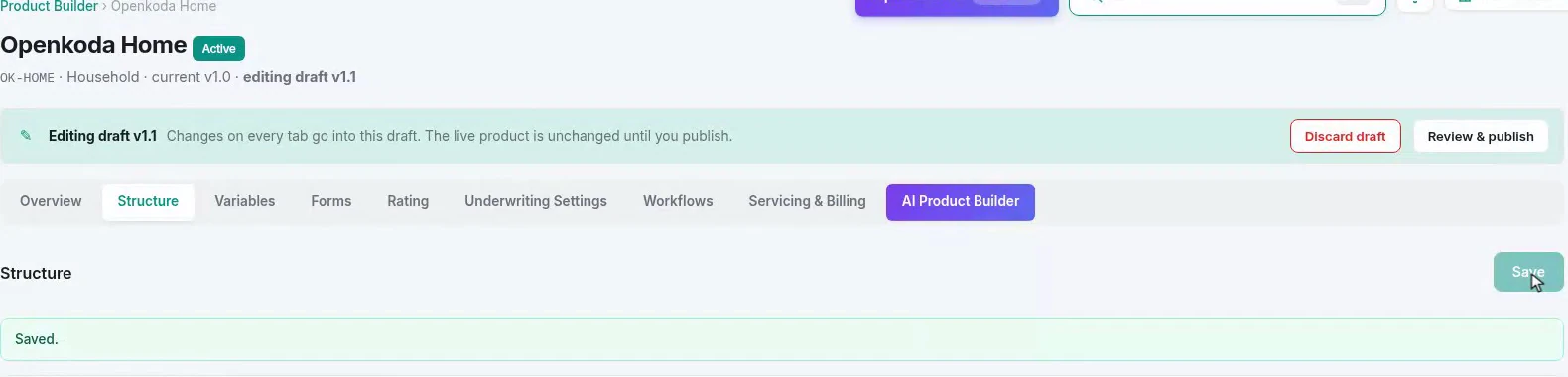
Press Edit in a new draft. The header now reads current v1.0 · editing draft v1.1, and the banner turns green: every tab writes into the draft from now on, and the live product is unchanged until you publish. The banner also carries the two ways out, Discard draft and Review & publish.

A draft is a full copy of the product, not a patch on top of it: structure, rating tables and formulas, underwriting rules, forms, workflows and computed values are all cloned into it. That is what lets the live version stay exactly as it was while you work, and what lets the two be swapped cleanly at publish time. The same draft can also be opened from the Versions card on the Overview tab, with + New draft version.
First the rate. On Rating, the Flood peril table multiplies the premium by the property's flood risk, looked up by the flood_risk answer on the quote form. Open it and change the Medium row from 1.3 to 1.5.

Save. The status line counts what went into the draft: one calculation, one table, two taxes and fees. The live version's Flood peril table still says 1.3 for Medium, and a quote priced on it right now would prove that.
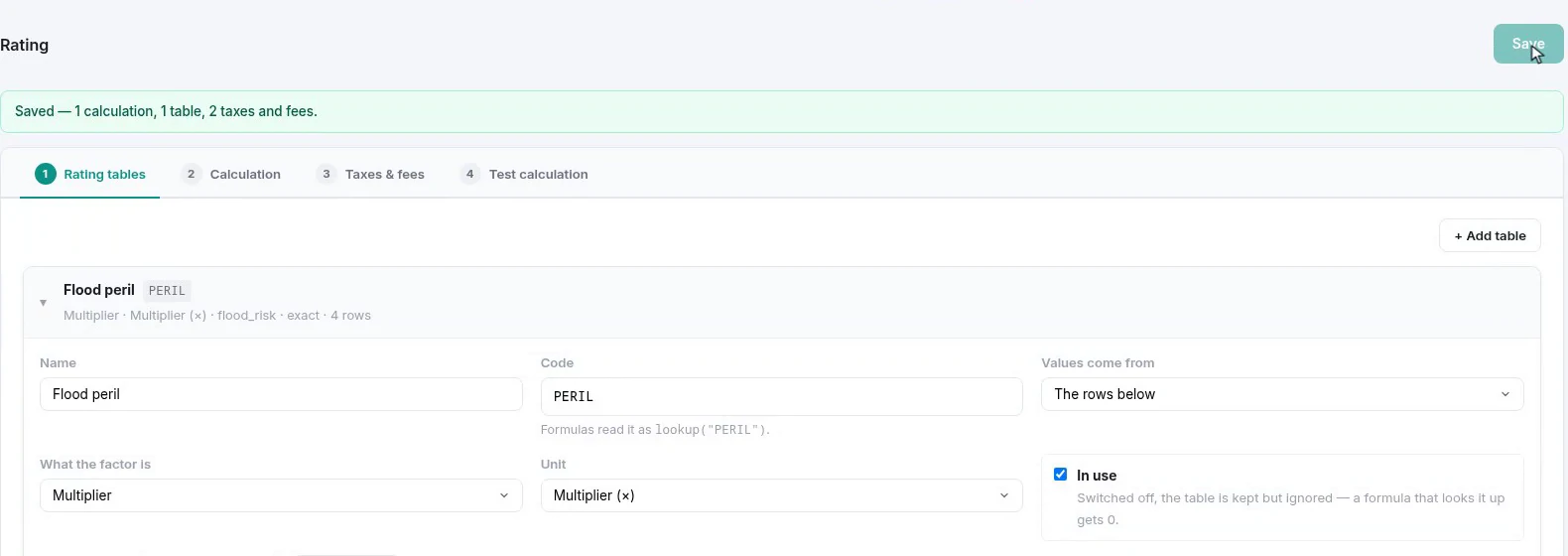
The formula that reads the table is versioned the same way. On the Calculation step it is one line: the premium is the larger of a rate on the sums insured and a minimum of 300, multiplied by the flood factor. Edit it here and, again, only the draft changes.

Then the structure. On Structure, under Risk types & coverage, press + Add coverage. Name it Home emergency, give it a suggested limit of 1,000, and leave Mandatory unticked, so the customer decides whether to take it. The dialog explains the alternative: a mandatory cover is always included and the applicant cannot leave it out.
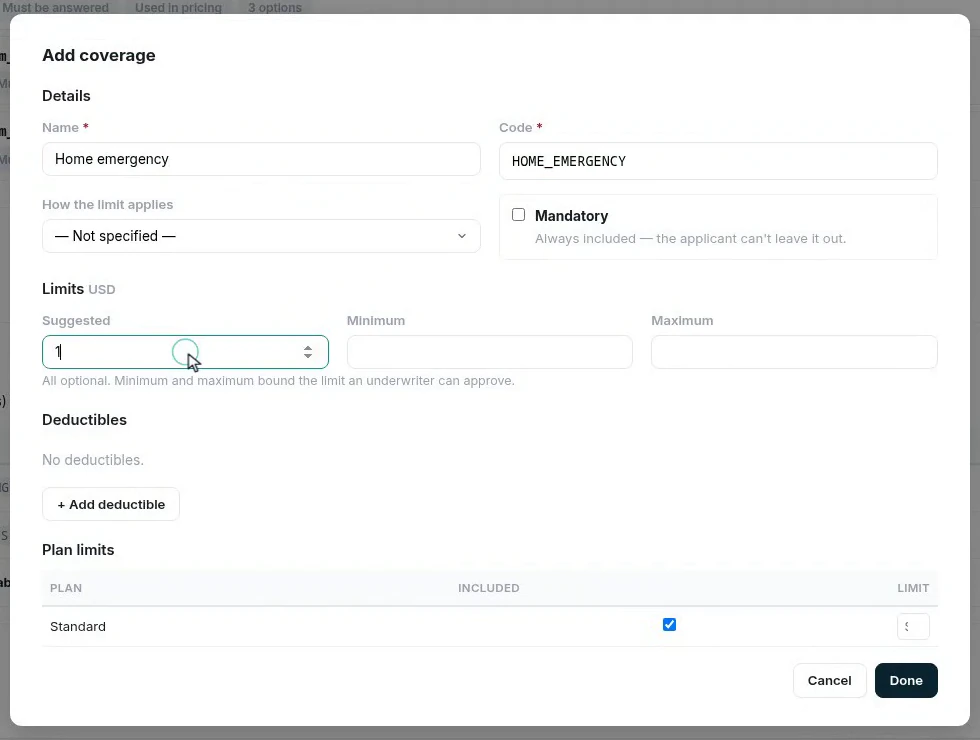
Press Done. The cover joins the three the product already had, Buildings, Contents and Property Owner Liability, and it is the only one without the Mandatory chip.
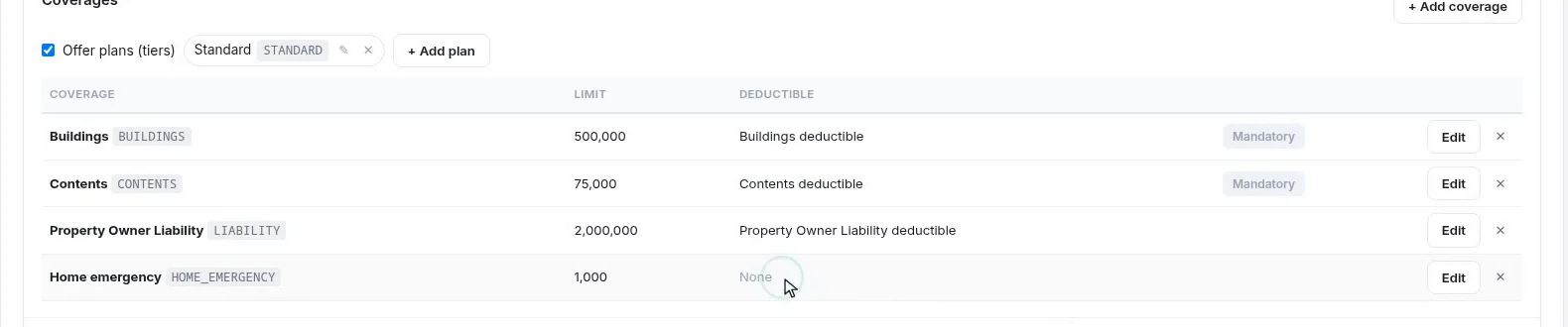
Save. This is the second tab written into the same draft, and still nothing has reached the live product. An underwriting rule or a workflow edit would go the same way.
Before anything goes live, validate it. On Overview, the Launch readiness card has a Validate product button. It checks the draft from every angle, structure, rating, forms, underwriting, workflows and documents, and prices a test quote on it. The result opens with the verdict and the test premium, then lists what is worth checking, each finding tagged with its area and linked to the tab that fixes it.
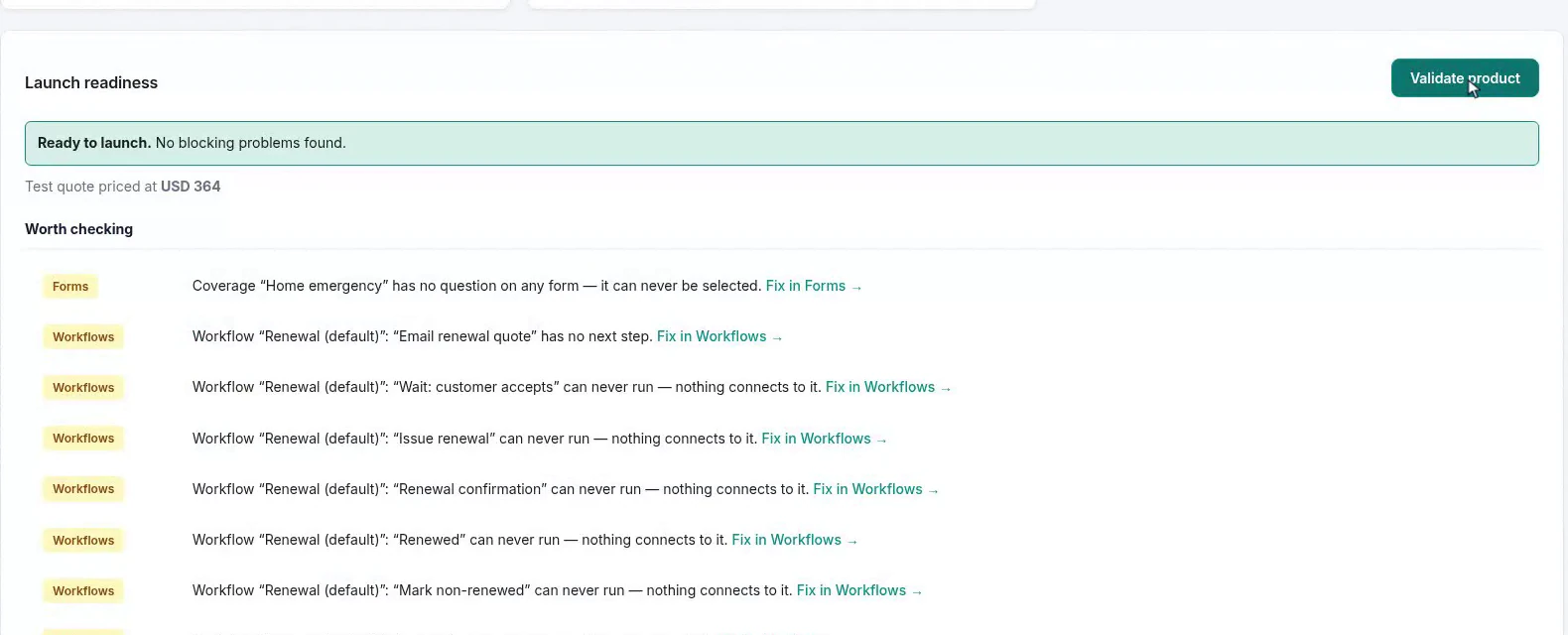
The draft is ready to launch, and the first finding is the one that matters for this change: the new cover has no question on any form, so it can never be selected. It is not a blocking problem, a product can go live with a cover nobody can pick, but it would make Step 4 pointless. The other findings are about the seeded demo configuration, a renewal workflow with loose steps and a missing minimum premium, and are left alone here.
Follow Fix in Forms. The draft has its own copies of the product's four forms, all marked Draft; the quote form, Openkoda Home for New Business, is the last row. Open it with Edit.
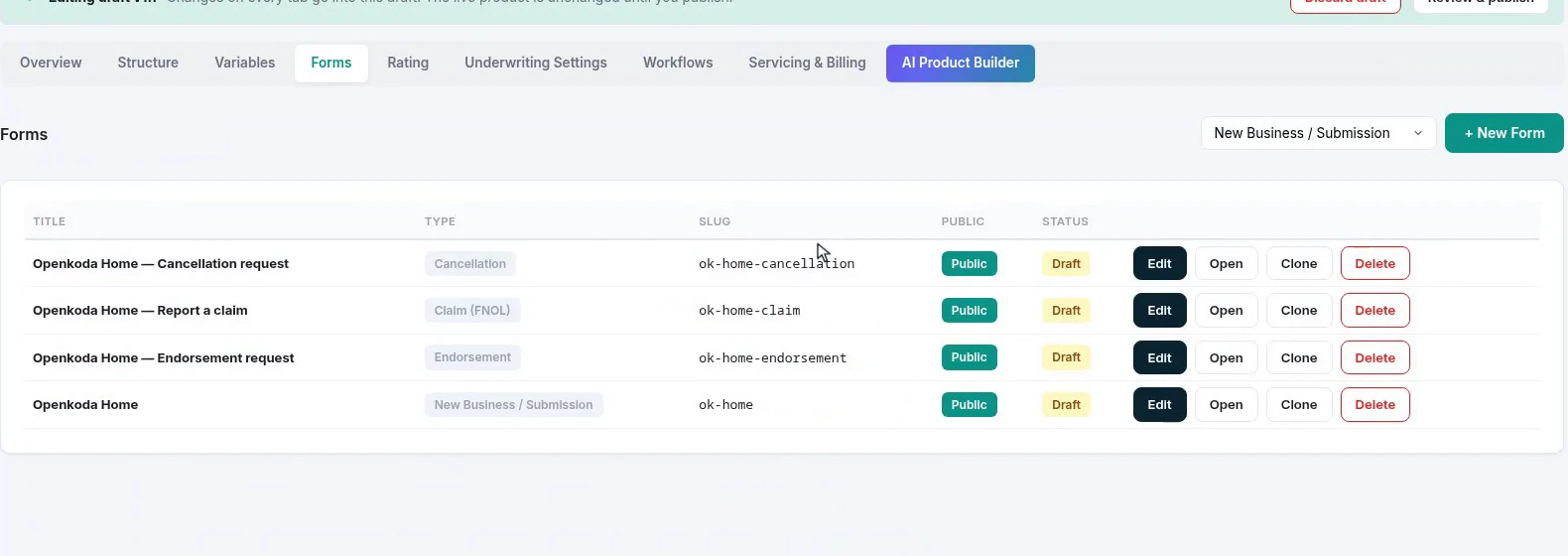
In the Coverages section, press + Add Question. Label it Home emergency - included?, set the type to Boolean, and in Save to pick the new cover's included? destination, which the form editor offers because the cover exists in the draft. Untick Required: the question is optional, like the cover.
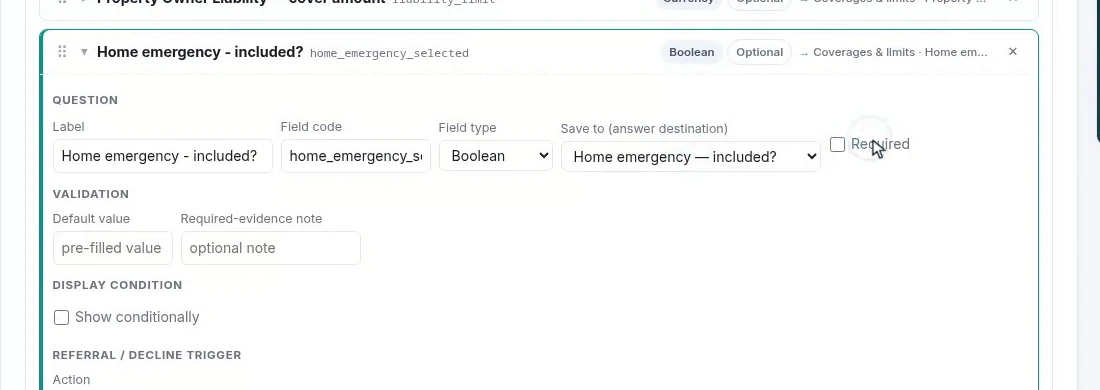
Save. The form is part of the draft too: the public form at /form/ok-home/ keeps serving the live version's questions until the draft is published.
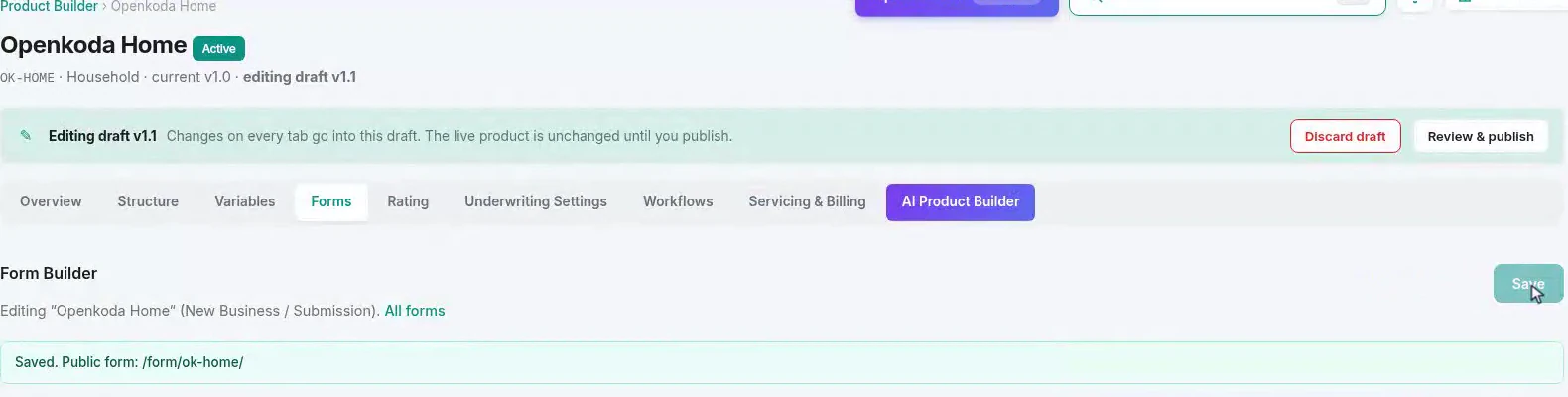
Back on Overview, run Validate product once more. The verdict is the same, ready to launch with no blocking problems, and the Forms finding is gone.
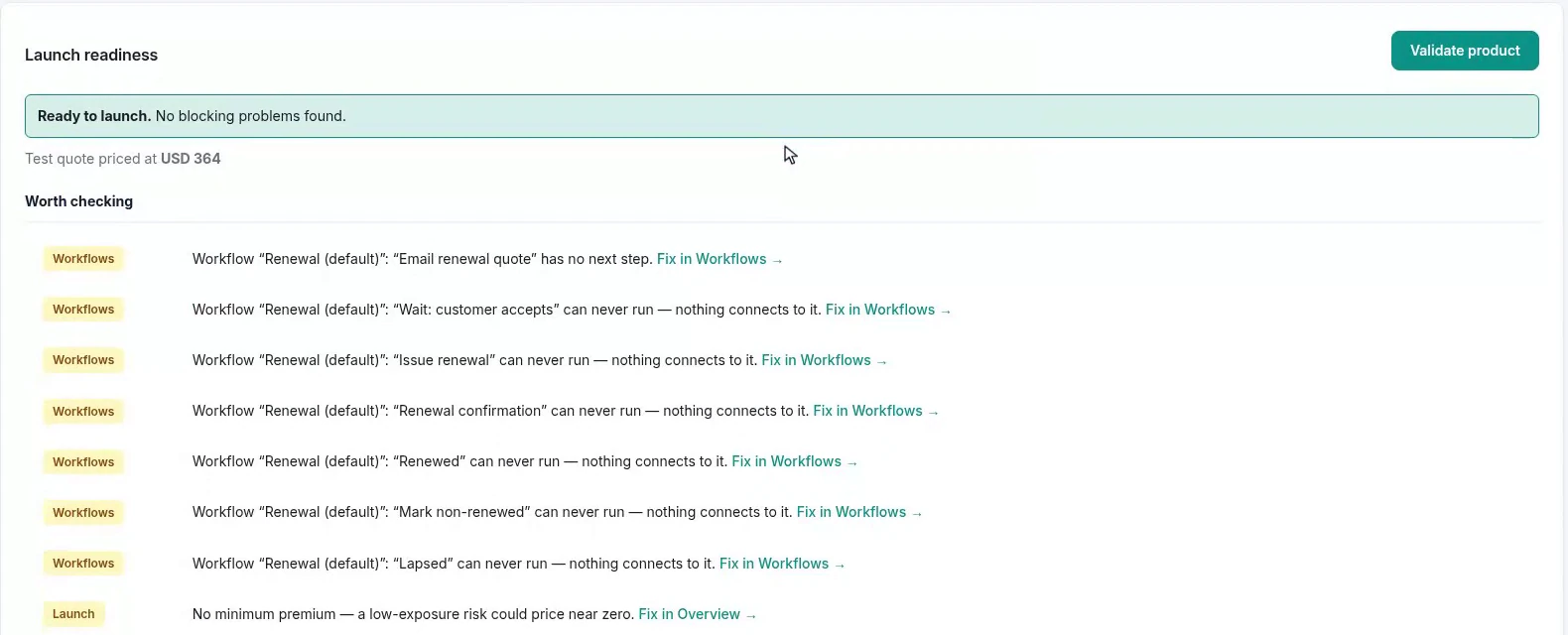
Further down, the Passed section shows what each area was checked against: one insured item type and now four coverages, a formula that references only fields that exist, four forms with thirty-three questions, three underwriting rules, twenty workflows.
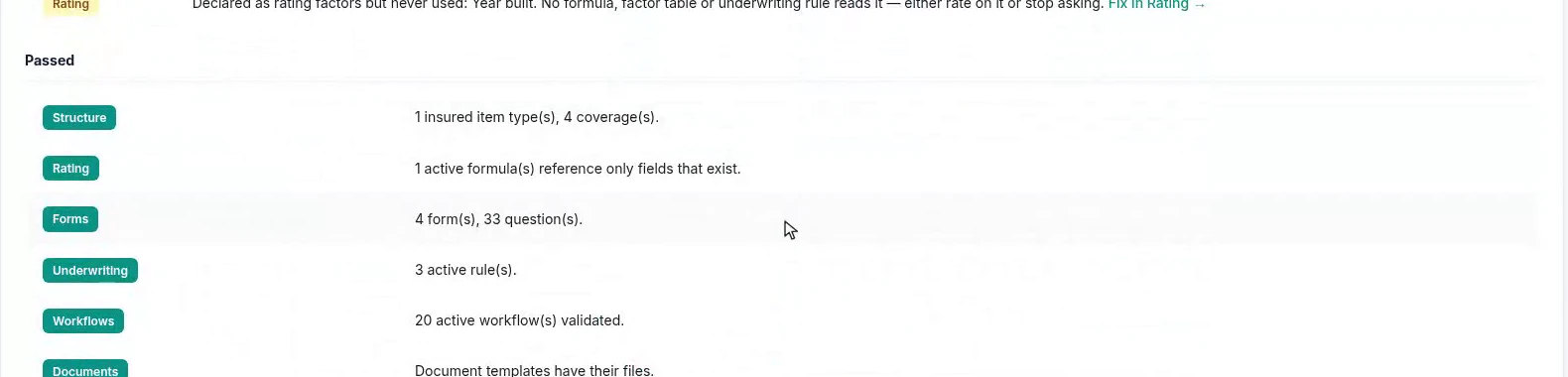
The readiness check judges the draft, not the live version, which is the point of running it before publishing: it prices its test quote on the draft's tables and reads the draft's forms.
Still on Overview, the Versions card lists both versions: v1.0 current since 1 January 2025, and v1.1 as a draft cloned from it. Under the table is the publish form. Say what changed in the summary field, in a sentence anyone will understand in a year, and press Publish v1.1.

The effective date is recorded on the version. Leave it blank and the version is current from today, which is what the walkthrough does. After publishing, the table tells the whole story: v1.1 is current from today, v1.0 is superseded with the day its run ended, v1.1 was cloned from v1.0, and the By column says who published it.

Note what did not happen: v1.0 was not deleted or edited. It is superseded, read-only, and still the version fourteen policies point at. The Make active button beside it is Step 12.
New business sees the new version at once. A customer, Oliver Finch, applies on the public quote form: applicant details first, then the property, a house in a medium flood-risk area with the same sums insured as the policy used in Step 11. On the Coverages step, the new Home emergency cover is there to pick, exactly as the draft's form defined it.
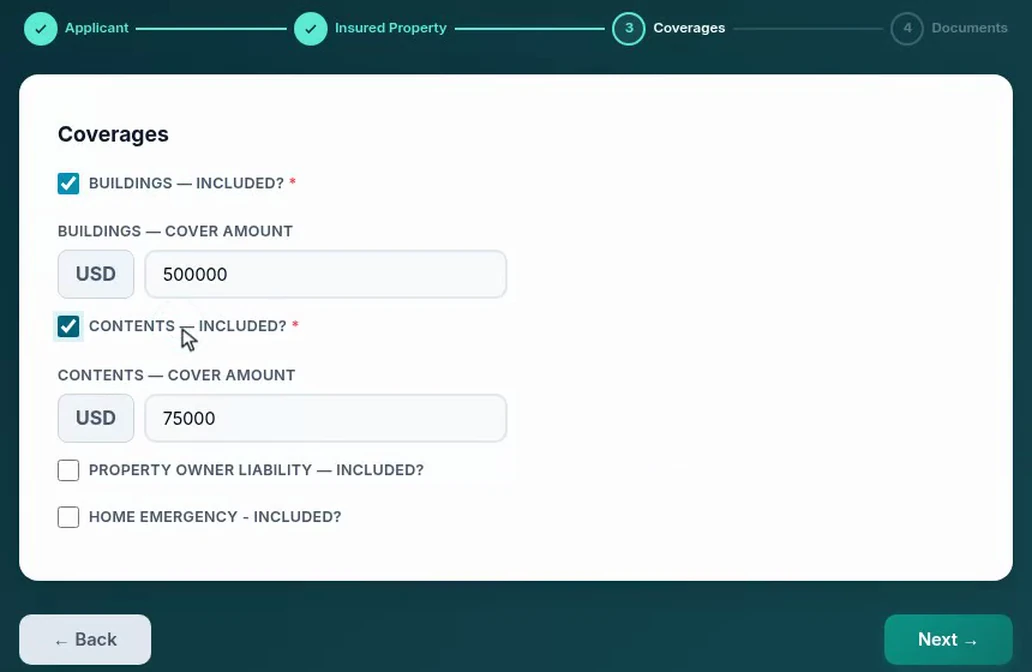
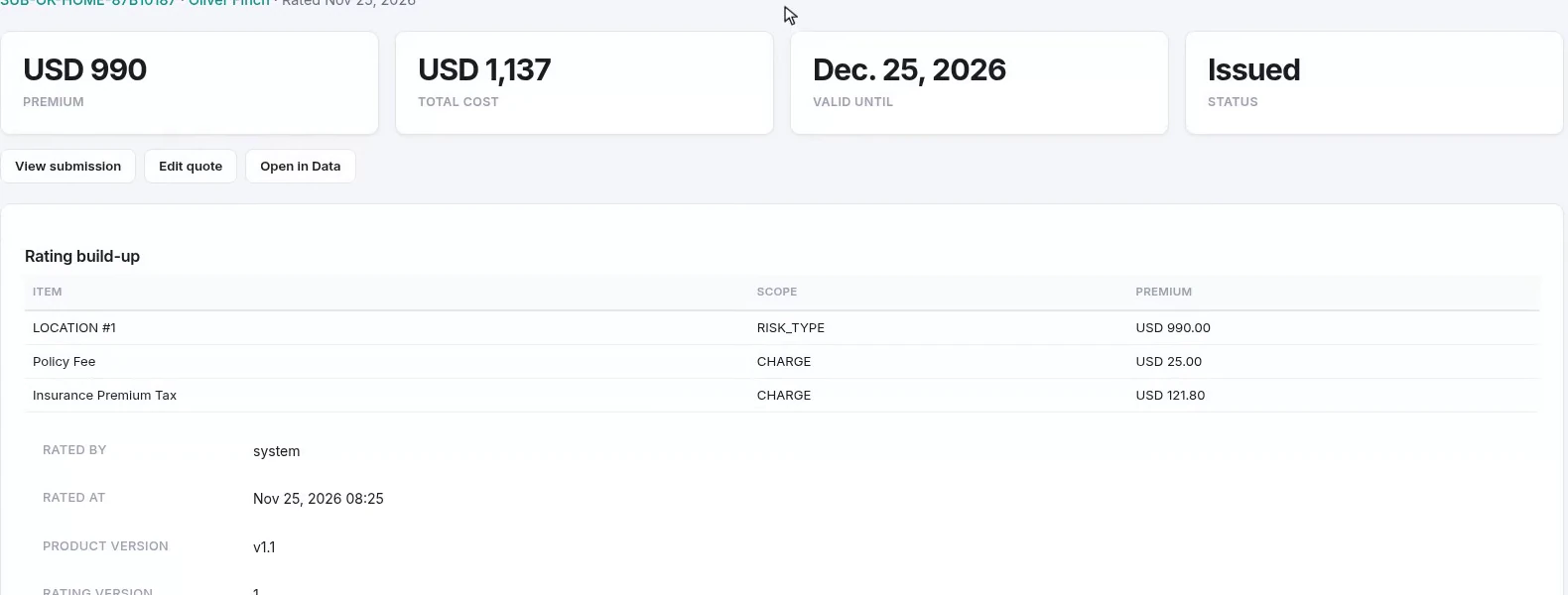
Submit, and the quote is issued on the new rates. The location premium is 990: the sums insured give 660 before the factor, and the Medium factor is now 1.5. On v1.0 the same house would have come out at 858.
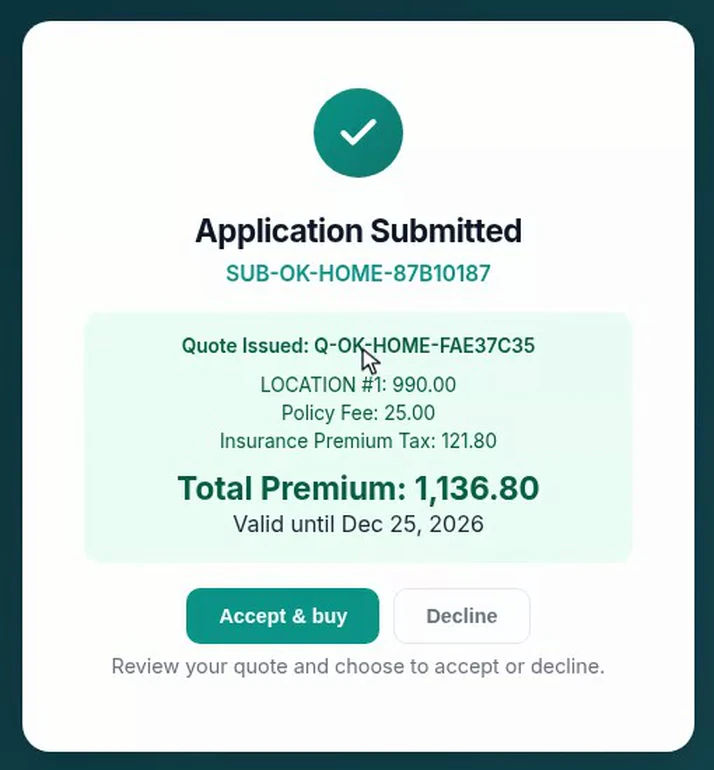
Back in the office, open the quote. The rating build-up lists the location premium, the policy fee and the tax, and below them the rating facts: who rated it, when, and the product version it was rated on, v1.1. That label is how a question about a premium gets answered months later: the version says which tables and which formula produced the number.
Now the other half of the promise. Nadia Brennan's policy is in force, sold on v1.0 at 858 a year, and her house is in a medium flood-risk area too. Open it in Policies.
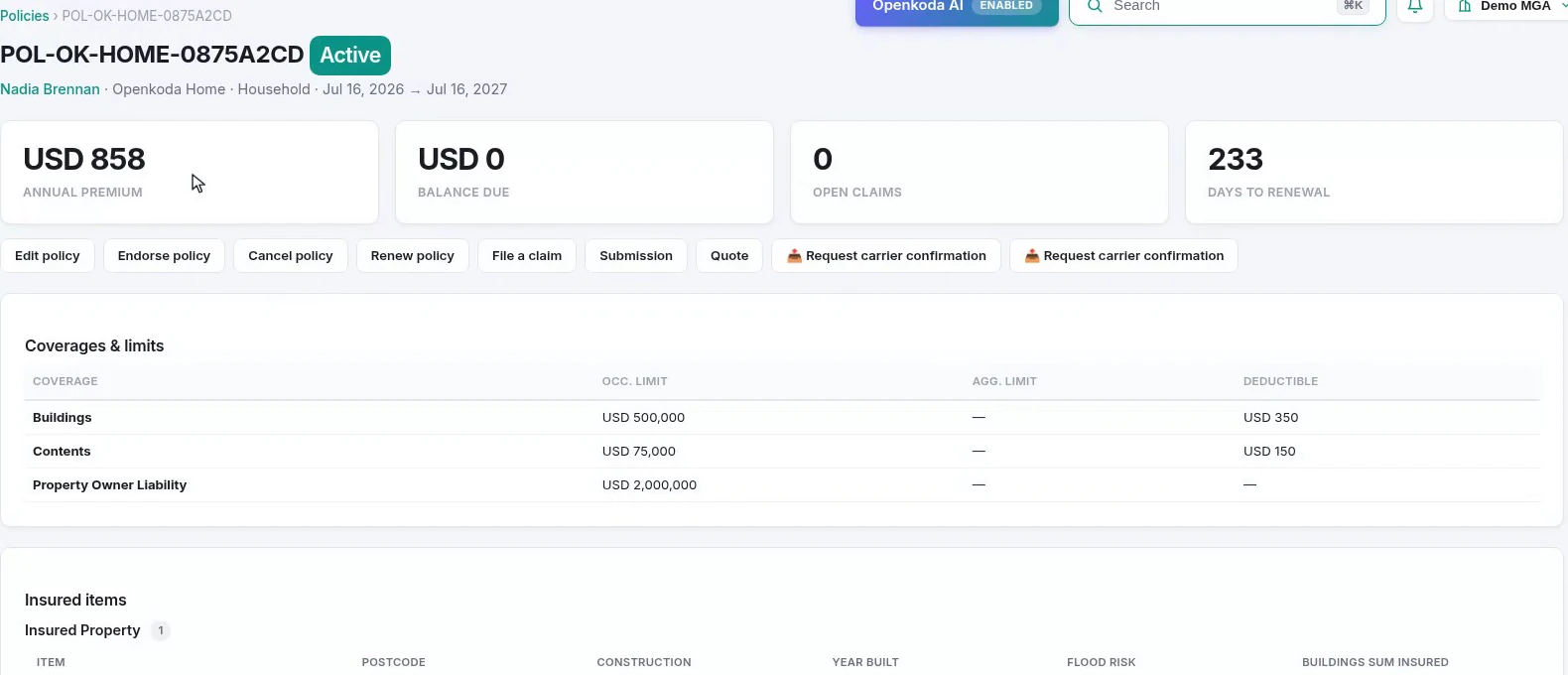
Policy 360 does not print a version label, so prove it with a re-rate. Press Endorse policy, choose an insured item details change, and make a small one: her contents sum insured goes up to 80,000. Everything else, including Flood Risk Medium, stays as it was.
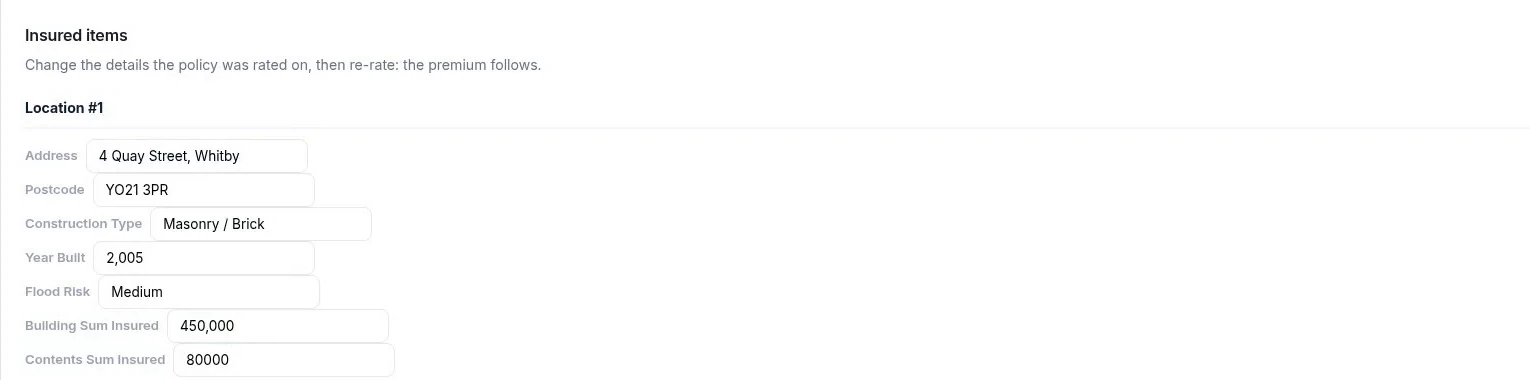
Press Re-rate and read the Premium impact. The annual premium goes from 858 to 910, the difference is prorated over 213 of the term's 365 days, and the last line says which version did the arithmetic: the product version v1.0 this policy was sold under. The old factor of 1.3 still applies. Had the endorsement been rated on v1.1, the same change would have come out at 1,050, and the customer would have been paying for a rate change she never bought.

The walkthrough changes nothing here, so press Cancel. Her renewal, when it comes, is rated on the same version for the same reason. Our tutorial on endorsements, cancellations and renewals walks through the endorsement screen in full.
If the change turns out to be wrong, roll it back. On Overview, in the Versions table, press Make active on v1.0. The confirmation says exactly what happens: new business uses it from now on, and in-force policies keep the version they were sold under.
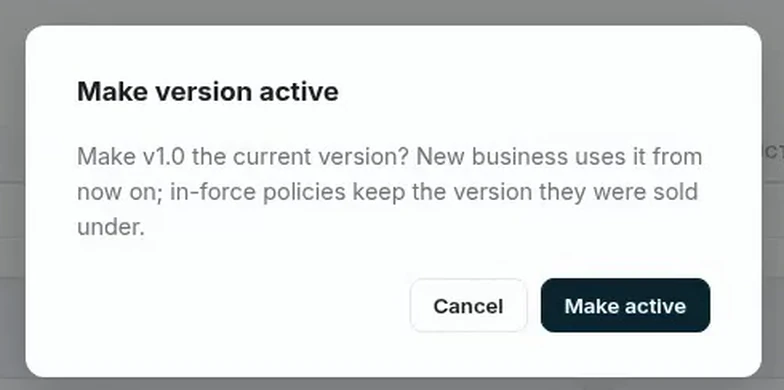
Confirm. v1.0 is current again, and v1.1 is superseded, with a run that lasted one day. Nothing is deleted: v1.1 keeps its tables, its cover and its form, and its own Make active button, so it can be made current again whenever you are ready, with no need to rebuild the change.

Any quote issued on v1.1 in between, Oliver's included, keeps saying v1.1 on its rating build-up. Versions are facts about what was sold, not settings that get overwritten.
A draft that should never be published is simply discarded. Open a new one from the banner, v1.2 here, and the banner offers Discard draft next to Review & publish.

The confirmation is as plain as the rollback's: the draft and every change in it go, the live version stays as it is, and this cannot be undone.
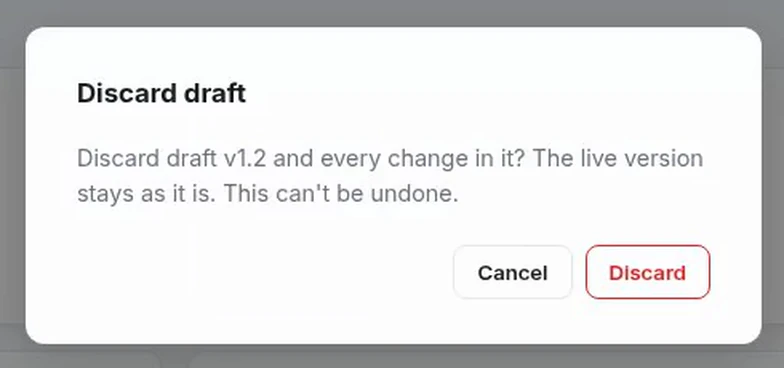
Confirm, and the product is back on its grey banner, live v1.0, fourteen policies, exactly as it was before Step 2.

Everything above is on the record. Under Admin → Audit Trail, filter the entity to ProductVersion. Reading from the bottom up: the draft's summary set, v1.1 published and v1.0 superseded, the fields each update touched, v1.0 activated and v1.1 superseded, draft v1.2 created and deleted, each line with the user who did it, the time and the address it came from.
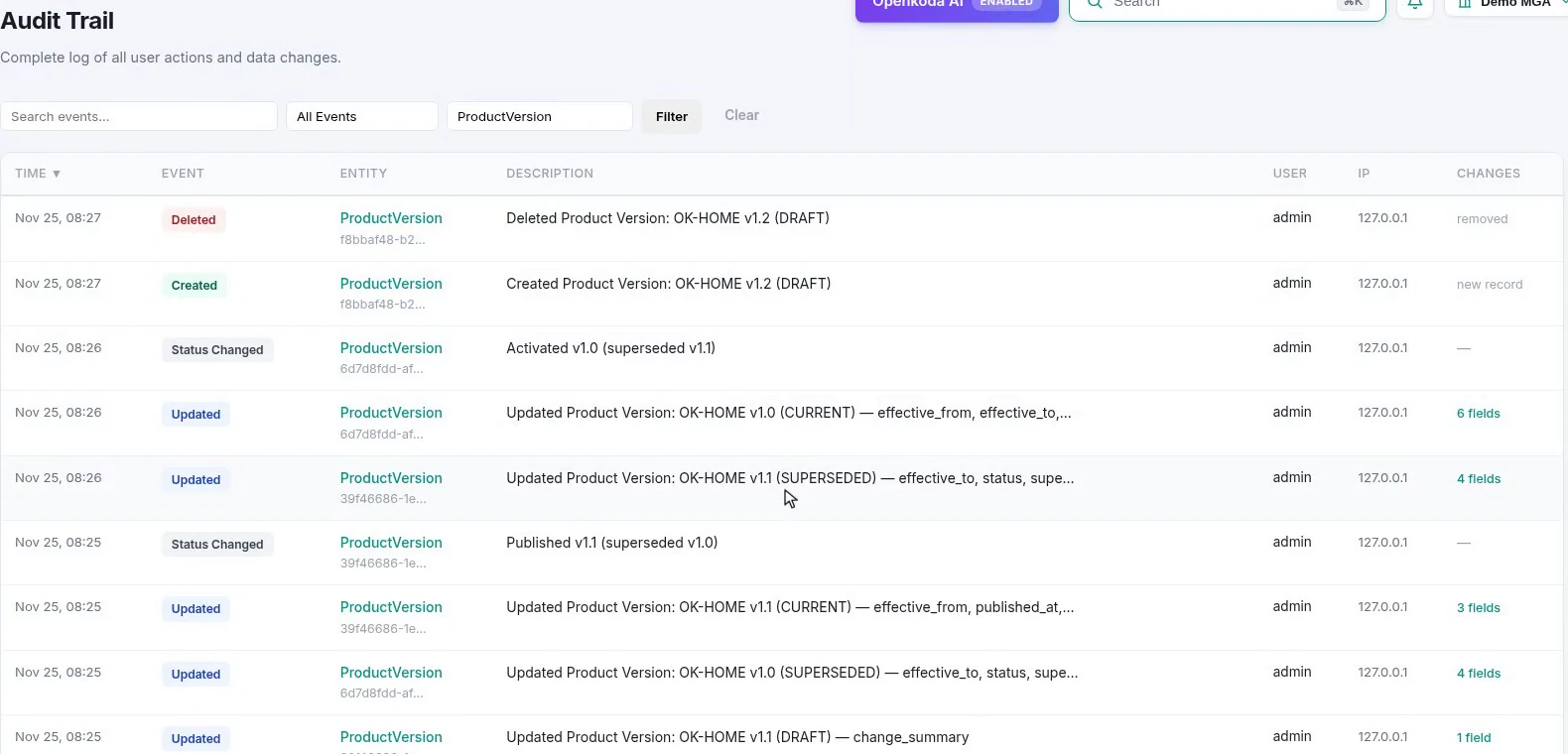
When an auditor asks who raised the flood factor and when it went live, the answer is a filter away, with the summary the publisher wrote at the time.
Product versioning in Openkoda PAS comes down to one rule and one table. The rule: a live version is never edited where sold policies depend on it, so a change is made in a draft, which is a full copy, validated against a test quote and every form, and published with a summary. The table: the Versions card, which keeps every version that was ever current, says which is current now, and offers to make any of them current again. New business follows the current version; each policy, quote and endorsement remembers the version it was rated on and keeps using it. The part to take away is what a rollback does not do: it deletes nothing and re-rates no sold policy, which is why you can publish a rate change on a Tuesday, without an IT release, and take it back on Wednesday if you have to.
Endorse a policy mid-term with the premium impact priced, cancel pro-rata or short-rate, renew in bulk from one queue, and approve changes customers request online.
Reminders that run themselves: a workflow, a reminder email with a pay-now link, a grace period and escalation, run from an overdue invoice to paid.
Switch the portal on, choose what customers can see and do, apply your brand, and let the new-business workflow invite each customer when their policy goes live.
Book a live, personalized demo with our product team - tell us your use case and see the platform work with your data. No commitment.